

Overview
Bifrost provides OpenAI-, Anthropic-, and Gemini-compatible endpoints for coding agents. Point each agent at the URL shape it expects (see Configuration below and the guide for your tool). That unlocks:- Cross-provider model access: Use provider-qualified Bifrost models when the selected model supports the protocol and tool capabilities required by the agent
- MCP Tools Integration: All Model Context Protocol tools configured in Bifrost become available to your agents
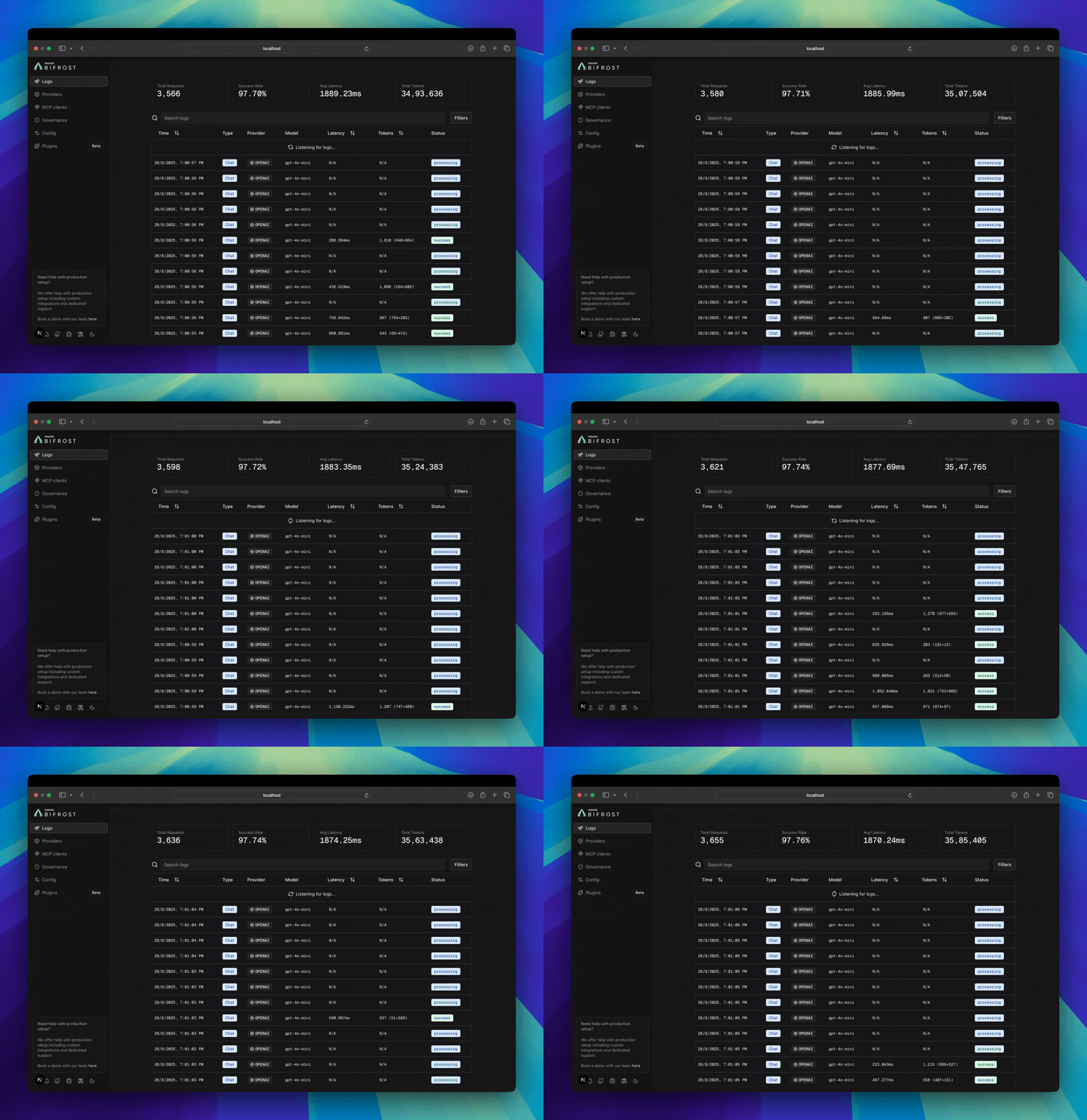
- Built-in Observability: Monitor all agent interactions in real-time through Bifrost’s logging dashboard
- Load Balancing: Automatically distribute requests across multiple providers and regions
- Advanced Features: Governance, caching, failover, and more - all transparent to your agent
If your Allowed Headers are already set to
*, you can skip this note. If not and you face issues integrating Bifrost with your CLI agent, try switching to * or adding the specific headers required by your client. By default, Bifrost whitelists: Content-Type, Authorization, X-Requested-With, X-Stainless-Timeout, and X-Api-Key.CLI Agents
LibreChat
Open-source chat client supporting multiple providers
Open WebUI
ChatGPT-like open-source chat interface
Claude Code
AI-powered coding directly in your terminal
Claude for Office
Claude in Word, Excel, PowerPoint, and Outlook
Claude Desktop
Route Claude Desktop App’s Code tab through any provider
GitHub Copilot
Route the Copilot App, CLI, and VS Code extension through any provider
Codex CLI
OpenAI’s powerful code generation CLI
Gemini CLI
Google’s coding assistant with advanced reasoning
Qwen Code
Alibaba’s coding assistant
OpenCode
Terminal-based coding assistant by SST
Editors
Cursor
AI-powered IDE with MCP integration and virtual key support
Zed Editor
High-performance editor with AI integration
Roo Code
AI-powered VS Code extension with multi-provider support
Configuration
OpenAI-compatible URL shape varies by client: tools such as Codex CLI need the API base to end with
/v1 (e.g. https://your-gateway/openai/v1). Official OpenAI SDKs often take https://your-gateway/openai and add /v1 to request paths. Use the page for your agent to avoid 404s or wrong-host errors.- Providers configured: See Provider Configuration for setup details
- Optional: MCP tools: See MCP Integration to enhance agent capabilities
Bifrost CLI authentication support
Enterprise browser SSO is user-scoped. Administrative commands still require a
scoped management API key. See the
Bifrost CLI credential guide.
Monitoring Agent Traffic
All agent interactions are automatically logged and can be monitored athttp://localhost:8080/logs. You can filter by provider, model, or search through conversation content to track your agents’ performance.
MCP Tools Integration
This feature is only available on
v1.4.0-prerelease1 and above./mcp. This allows external MCP clients (Claude Code, Cursor, and other MCP-compatible applications) to connect directly and access your tools.
Connect Claude Code to Bifrost MCP
Add Bifrost as an MCP server to Claude Code:sk-bf-your-virtual-key with your actual Bifrost virtual key.
Claude Code will only have access to the specific MCP tools permitted by the virtual key’s configuration. To grant access to additional tools, verify or modify the virtual key’s MCP tool permissions in the Bifrost dashboard.
Supported Agents
You can connect any MCP-compatible client to Bifrost’s MCP server:- Claude Code - Add via
claude mcp addcommand - Cursor IDE - Configure in cursor settings
- Custom Applications - Any app implementing the MCP protocol
Tool Access Control
Control which tools each client can access using Virtual Keys:- Create a Virtual Key for each client/environment
- Configure which MCP servers and tools the key can access
- Bifrost automatically enforces these permissions
Next Steps
- Provider Configuration - Configure AI providers for your agents
- Governance - Set usage limits and policies for your agents
- Integrations - Understand how Bifrost works with existing AI provider SDKs