

Overview
Virtual Keys are the primary governance entity in Bifrost. Users and applications authenticate using the given headers to access virtual keys and get specific access permissions, budgets, and rate limits. Allowed Headers:x-bf-vk- Virtual key header, eg.sk-bf-*Authorization- Authorization header, eg.Bearer sk-bf-*(OpenAI style)x-api-key- API key header, eg.sk-bf-*(Anthropic style)x-goog-api-key- API key header, eg.sk-bf-*(Google Gemini style)api-key- API key header, eg.sk-bf-*(Azure OpenAI style)
Old virtual keys(without
sk-bf-* prefix) are only supported by x-bf-vk header.Enterprise: IdP tokens are also accepted. Virtual keys remain the standard way to authenticate. On Bifrost Enterprise with SSO configured, you can also authenticate with a token issued by your identity provider:
Authorization: Bearer <idp-token>. Bifrost validates the token and attributes the request to that user, applying their access profile, budgets, and rate limits. Use the Authorization header for IdP tokens; the other headers above carry virtual keys only. See Setting up auth for details.- Access Control - Model and provider filtering
- Cost Management - Independent budgets (checked along with team/customer budgets if attached)
- Budget Overrides - Temporarily add spending capacity without changing the base budget
- Rate Limiting - Token and request-based throttling (VK-level only)
- Key Restrictions - Limit VK to specific provider API keys (if configured, VK can only use those keys)
- Exclusive Attachment - Belongs to either one team OR one customer OR neither (mutually exclusive). In Enterprise, a key can also belong to a business unit or a user, still only one owner
- Active/Inactive Status - Enable/disable access instantly
Configuration
- Web UI
- API
- config.json
- Go to Virtual Keys
-
Click on Add Virtual Key button
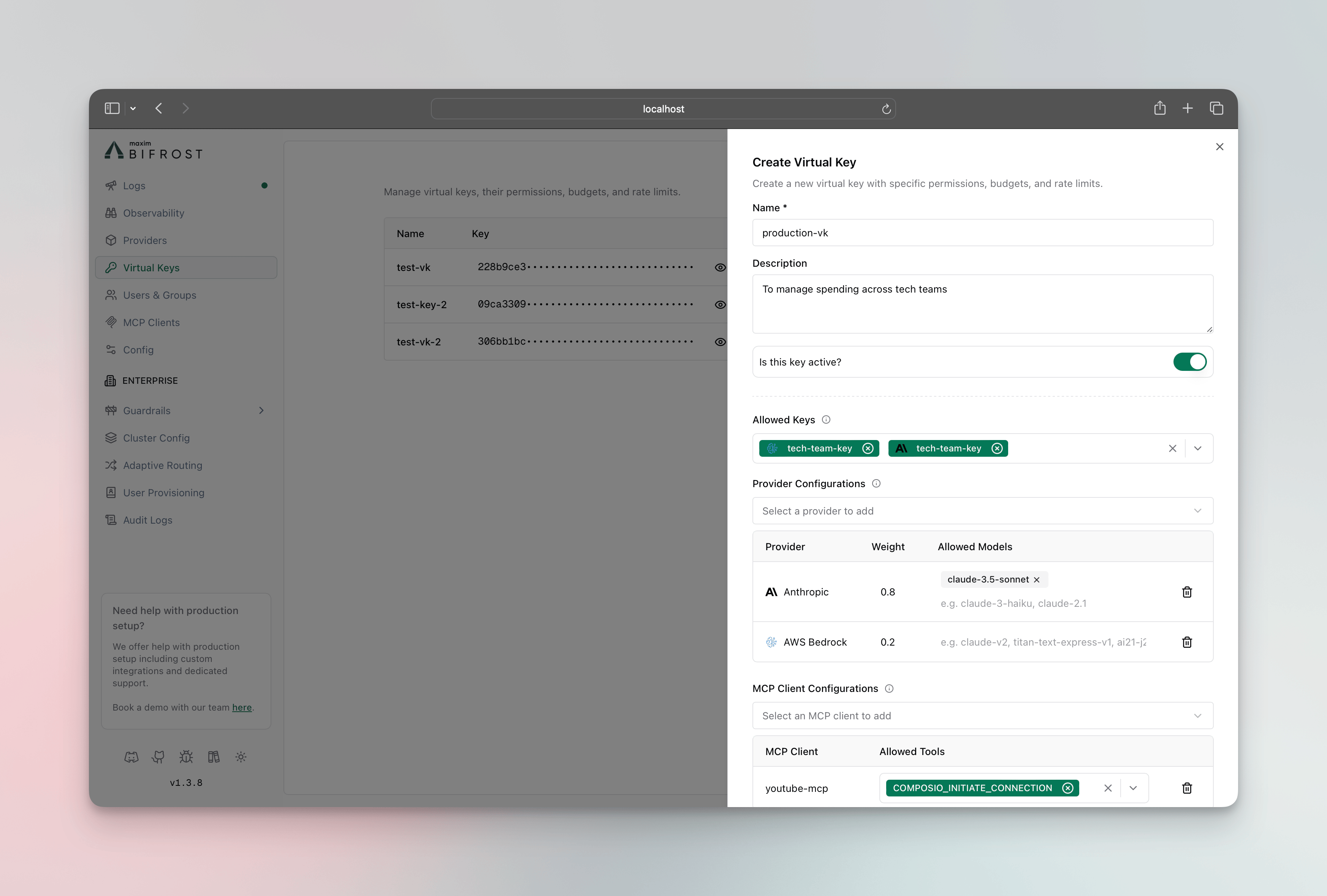
- Max Limit: Dollar amount (e.g.,
10.50) - Reset Duration:
1m,1h,1d,1w,1M,1Q,1Y - Calendar aligned (optional): When enabled, the budget resets at calendar boundaries in UTC (day/week/month/quarter/year) instead of on a rolling window. Only applies to day/week/month/quarter/year periods. See Budget and Limits.
- Token Limit: Max tokens per period
- Request Limit: Max requests per period
- Reset Duration: Reset frequency for each limit
- Team: Assign to existing team (mutually exclusive with customer)
- Customer: Assign to existing customer (mutually exclusive with team)
- Click Create Virtual Key
Content logging per key
Each virtual key can decide whether the content of its requests and responses is stored. Thedisable_content_logging field is tri-state:
- omitted or
null: inheritclient.disable_content_logging true: content is not stored in the log store for this key’s traffic (an allowedx-bf-disable-content-logging: falseheader can still re-enable it for one request), and OpenTelemetry export is stripped of content toofalse: content is stored for this key’s traffic even when the client setting istrue
x-bf-disable-content-logging header when per-request overrides are allowed. See Content Logging for how each layer treats the log store and observability connectors.
Provider access
By default a virtual key is deny-by-default for providers: it can only use providers listed inprovider_configs. An empty provider_configs blocks every provider.
Set allow_all_providers to true to grant the key access to every configured provider, including providers added later, without listing each one.
- Web UI
- API
- config.json
In the Provider Configurations section of the virtual key form, turn on the Allow all providers toggle. Every configured provider is listed as a row, so you can optionally set per-provider budgets, rate limits, or model/key restrictions on any of them. When the toggle is off, provider access is deny-by-default: only providers listed in
provider_configs are allowed, and providers added later are denied.allow_all_providers coexists with provider_configs. When it is on, a provider that also has a provider_configs entry still has that entry’s model allow/blacklist, budgets, rate limits, and key selection applied; providers without an entry get all models, all keys, and no per-provider limits. This lets you allow everything while still capping or restricting specific providers.
How access is resolved
Access depends on theallow_all_providers value and whether the provider has a provider_configs entry:
When
allow_all_providers is true:
- A listed provider’s
allowed_modelsandblacklisted_modelsstill apply. Allow-all never widens an allowlist: a model outside a listed provider’sallowed_modelsstays denied, and a model in itsblacklisted_modelsstays denied. - An entry in either list that starts with
regex:is an RE2 pattern instead of a name. It must match the whole model name and is case-insensitive, so"allowed_models": ["gpt-4o", "regex:^claude-3-.*"]allowsgpt-4oand everyclaude-3-model, and"blacklisted_models": ["regex:.*-preview$"]blocks every preview. A pattern that is empty,*, or does not compile is refused with 400. Patterns inblacklisted_modelswin overallowed_models, and patterns are never listed as models. - A listed provider’s budgets, rate limits, and
key_idsselection still apply. Allow-all does not lift per-provider limits on providers you have configured. - Only providers with no
provider_configsentry get the open treatment (all models, all keys, no limits). - Providers added to Bifrost after the key was created are treated as unlisted, so they are allowed automatically without editing the key.
allow_all_providers defaults to false. When it is false, provider access stays deny-by-default via provider_configs.Batches defined by an uploaded file
A batch created frominput_file_id or input_blob names its models inside the uploaded input, which Bifrost does not read. When a key restricts models on the provider (an allowed_models list other than *, or any blacklisted_models), such batches are checked against what the provider actually runs:
- OpenAI and Azure run the models named in each input row and ignore the
modelon the batch request, so creating a file- or blob-based batch requires a key that allows every model of that provider. Otherwise the request is refused with403(model_blocked), even if an allowedmodelis supplied. - Gemini, Vertex, and Bedrock run the model named on the batch request, so that
modelmust be supplied and allowed by the key.
requests together is refused with 400: no provider runs inline requests beside a file, so the batch’s work must be named once.
Inline batches (requests) are checked per item and are unaffected, as are keys that allow every model of the provider.
Passthrough requests
A passthrough route forwards the request body as the provider reads it. When a key restricts models on the provider, every model the body names is checked: themodel of a JSON object body, or the model of each task in a task array (Runware). A passthrough request that names no model anywhere, neither in its path nor in its body, is refused with 403 (model_blocked) under such a key, since the provider would still run a model the key never allowed. Keys that allow every model of the provider forward every passthrough body as before.
User Groups
Teams
Teams provide organizational grouping for virtual keys with department-level budget management. Teams can belong to one customer and have their own independent budget allocation. Key Features:- Organizational Structure - Group multiple virtual keys
- Independent Budgets - Department-level cost control (separate from customer budgets)
- Customer Association - Can belong to one customer (optional)
- Rate Limit - A team can have one rate limit of its own, checked alongside its keys’ rate limits
- Web UI
- API
- config.json
- Go to Governance → Teams
-
Click on Add Team button
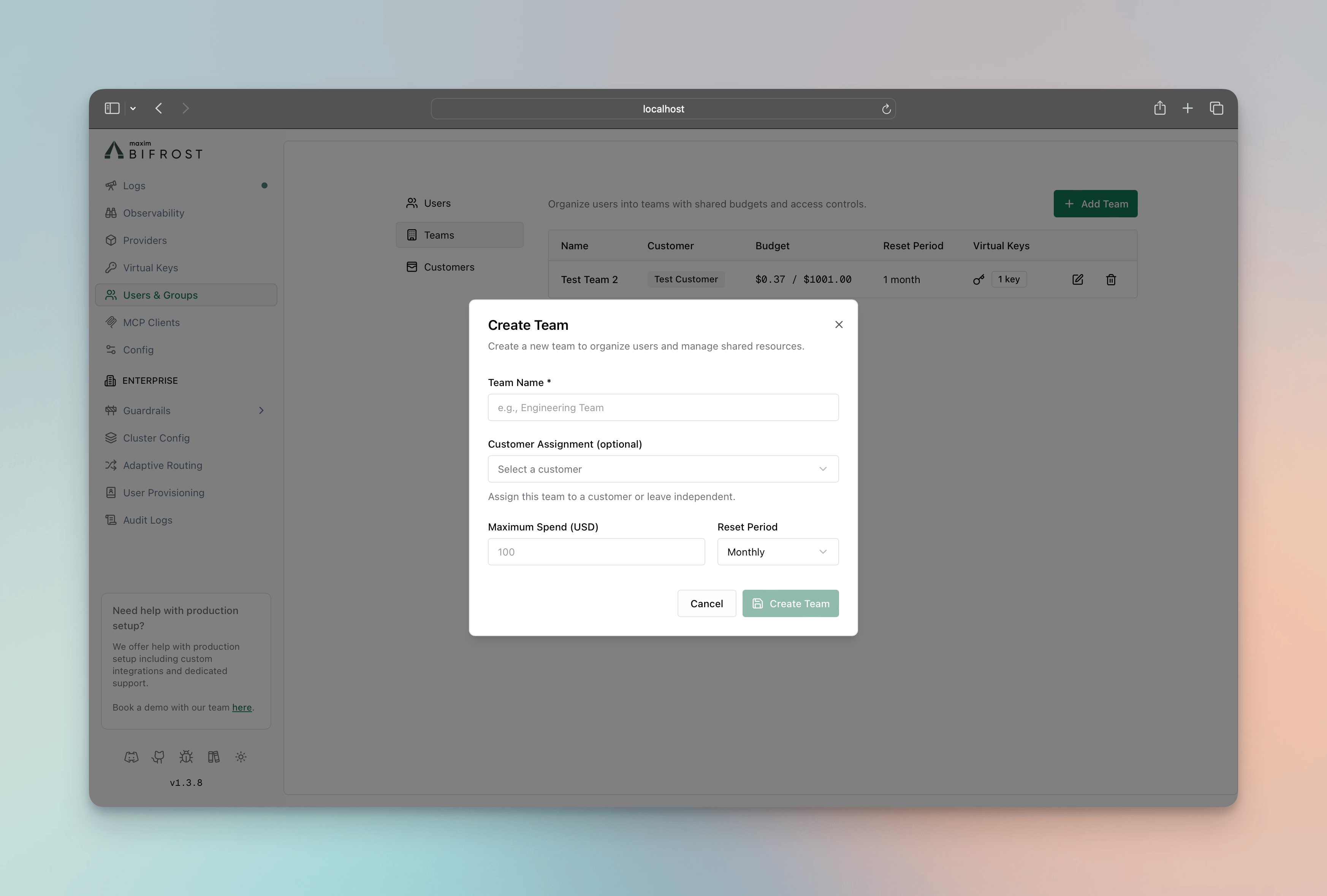
- Assign Virtual Keys to Team
- Go to Virtual Keys page
- Edit the virtual key and assign it to the team
- Click on Save button
Customers
Customers represent the highest level in the governance hierarchy, typically corresponding to organizations or major business units. They provide top-level budget control and organizational structure. Key Features:- Top-Level Organization - Highest hierarchy level
- Independent Budgets - Organization-wide cost control (separate from team/VK budgets)
- Team Management - Contains multiple teams and direct VKs
- Rate Limit - A customer can have one rate limit of its own, checked alongside its teams’ and keys’ rate limits
- Web UI
- API
- config.json
- Go to Governance → Customers
-
Click on Add Customer button
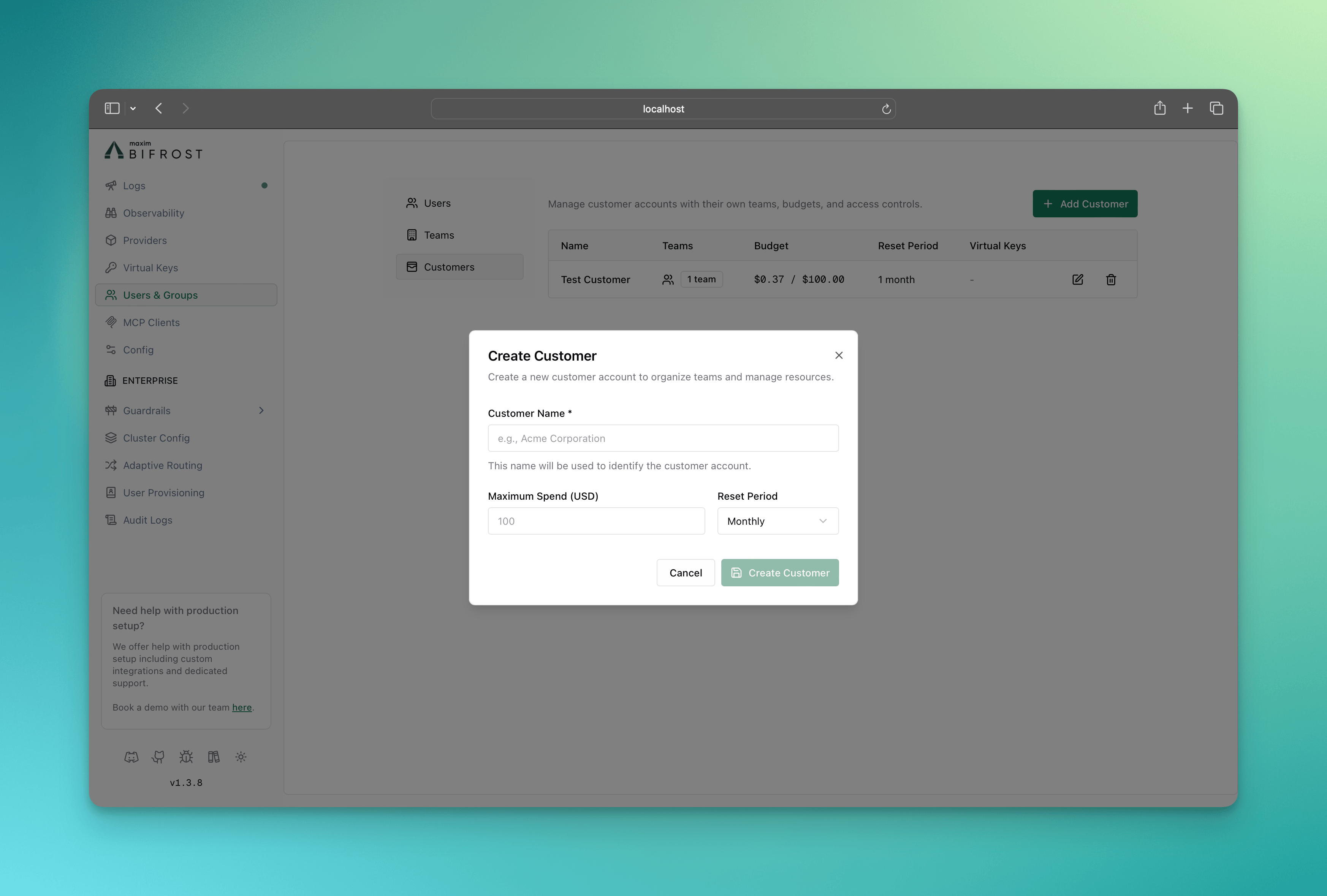
-
Assign Teams to Customer
- Go to Teams page
- Edit the team and assign it to the customer
- Click on Save button
-
Assign Virtual Keys to Customer
- Go to Virtual Keys page
- Edit the virtual key and assign it to the customer
- Click on Save button
Features
- Budget and Limits - Enterprise-grade budget management and cost control and rate limiting using virtual keys
- Routing - Route requests to the appropriate providers/models and restrict api keys using virtual keys
- MCP Tool Filtering - Manage MCP clients/tools for virtual keys
Usage
Budget Overrides
Budget overrides add temporary spending capacity to an existing virtual-key budget without changing its base limit, current usage, or reset schedule. While an override is active, Bifrost calculates the effective limit as:$100 override to a $1,000 budget raises its effective limit to $1,100.
- Go to Virtual Keys, open a virtual key, and scroll to Budget Information.
- Click Add override on the budget you want to increase.
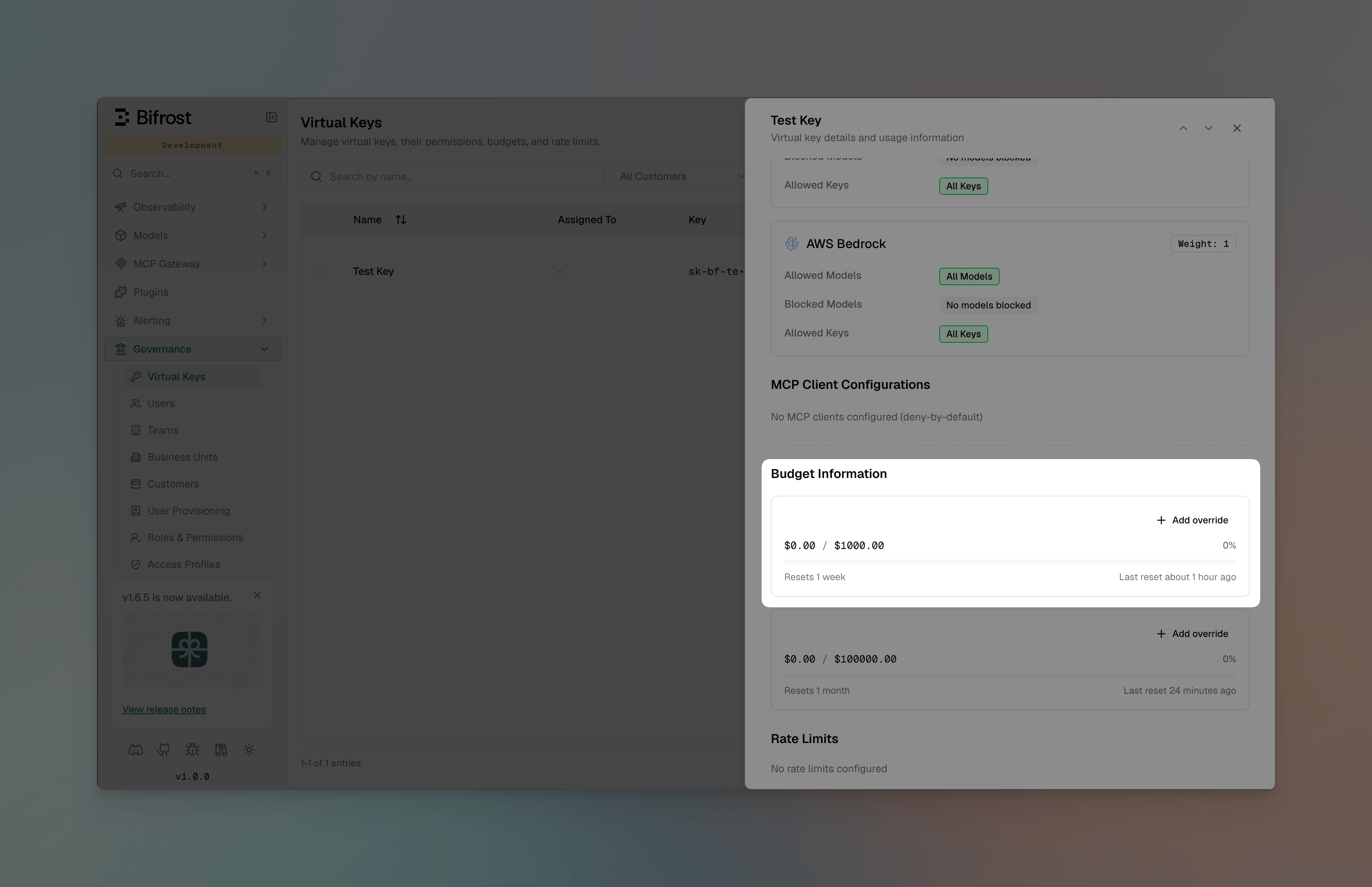
- Enter the Additional budget, then choose a duration:
- For a number of reset cycles: Enter one or more cycles. The current cycle counts as the first cycle, and the dialog shows the date and time until which the override is expected to remain valid.
- Until removed: Keep the override active across resets until it is removed manually.
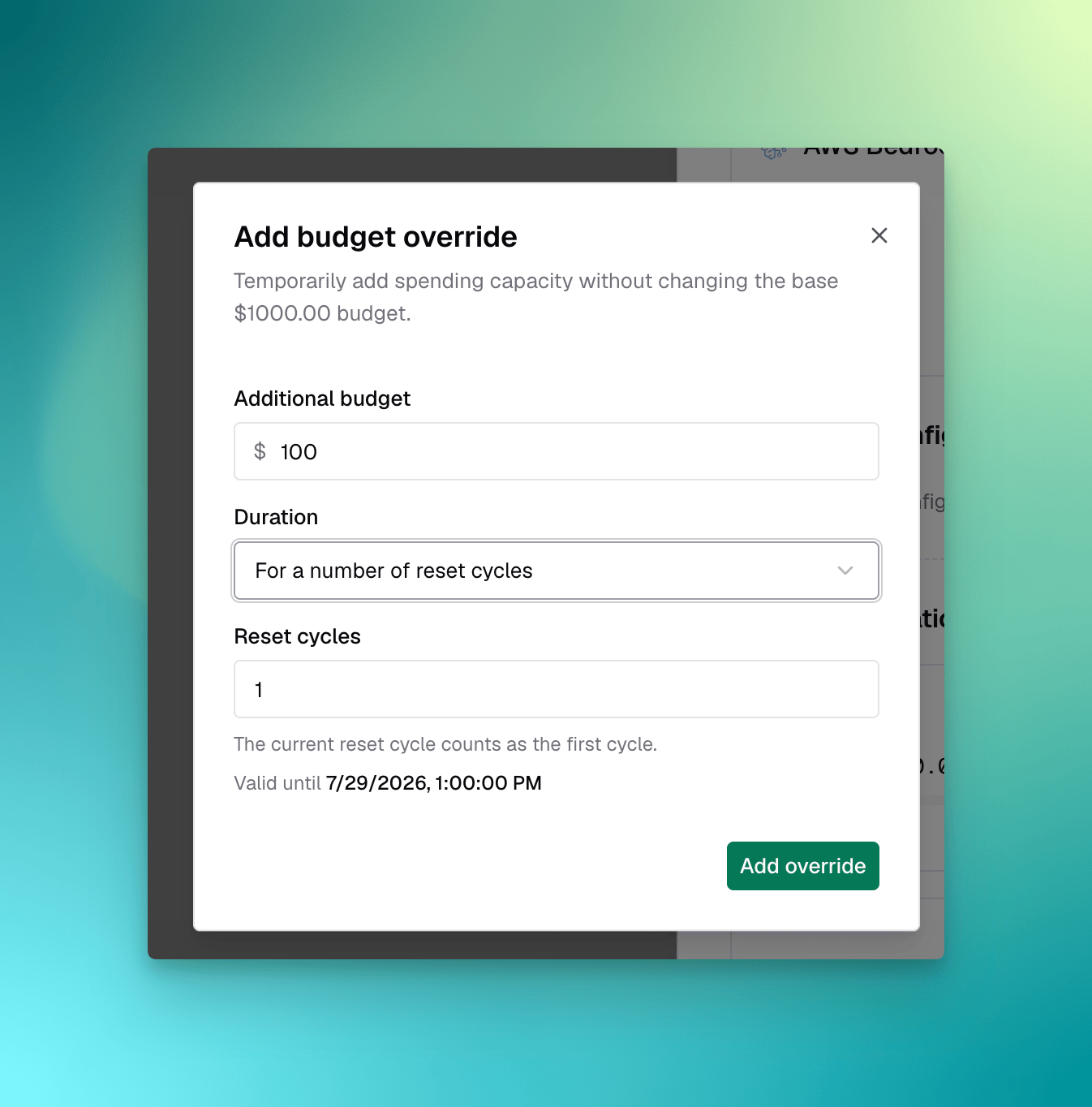
- Click Add override. The budget card displays the effective limit, its base and override amounts, and either the remaining reset cycles or until removed.
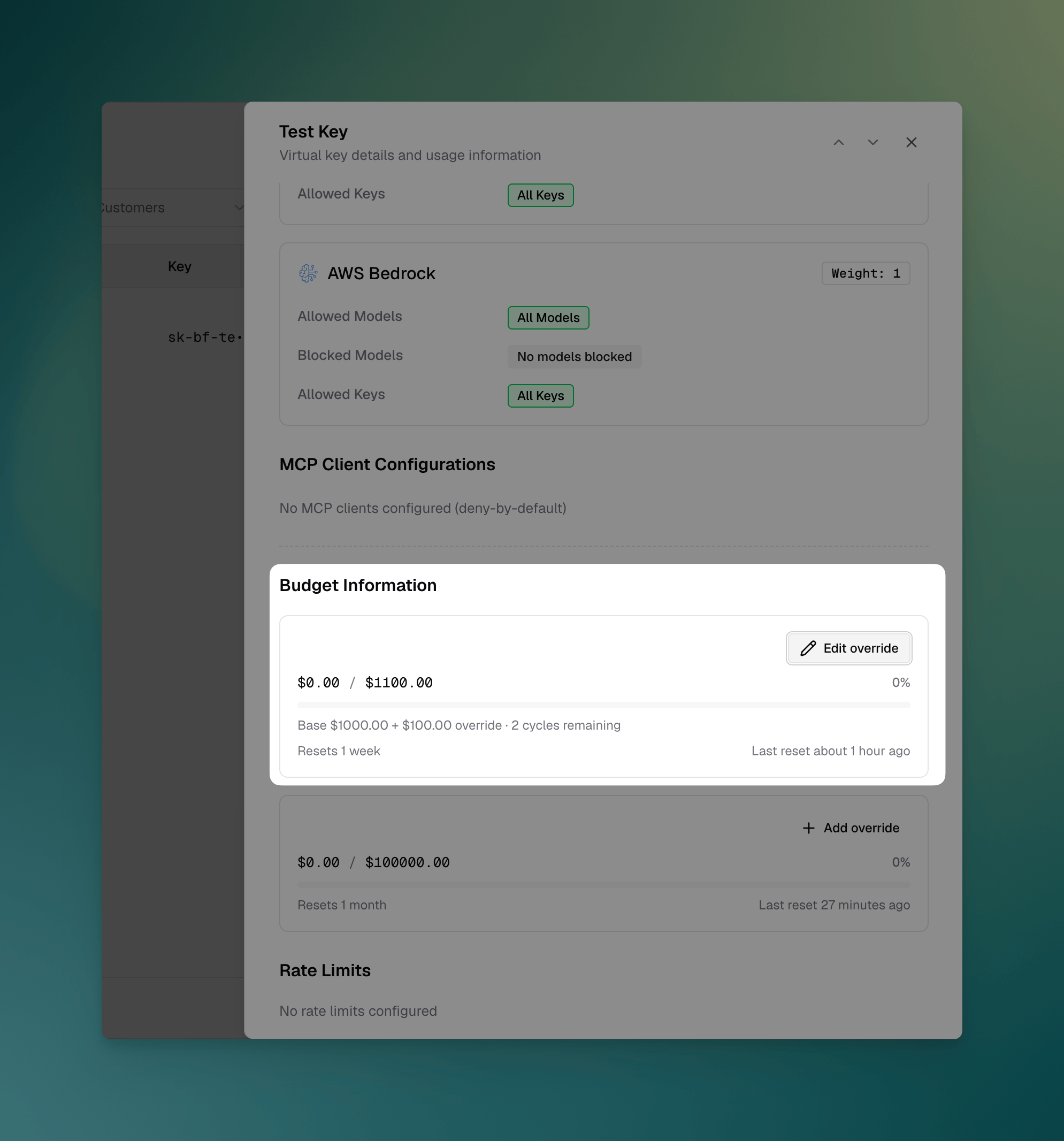
Overrides are available after a budget has been created. Budgets inherited from an enterprise access profile must be overridden from that access profile instead of from the virtual key.
Managing overrides via API
Two endpoints manage the override on a single virtual-key budget. Both take the virtual key ID and the ID of a budget that key owns, and both return the persisted budget alongside itseffective_max_limit.
Grant extra spend for a fixed number of reset cycles:
"cycles": 2 covers the rest of this window plus the next one. Use "mode": "forever" (with no cycles) to keep the override active until it is removed:
Response
max_limit:
- The override never changes
max_limit,current_usage, or the reset schedule — only the limit that usage is enforced against. amountmust be greater than 0. Incyclesmode,cyclesmust be greater than 0; inforevermode it must be omitted.- A finite grant is anchored to the budget’s current reset window, so remaining cycles are derived from that grant on every reset. Each node in a cluster computes the same count, and a config reload cannot hand back a cycle that was already spent.
- A cycles override clears itself once every granted window has closed;
DELETEclears one at any time and cannot be undone.
Making Virtual Keys Mandatory
All governance-enabled requests must include the virtual key header:- Web UI
- API
- config.json
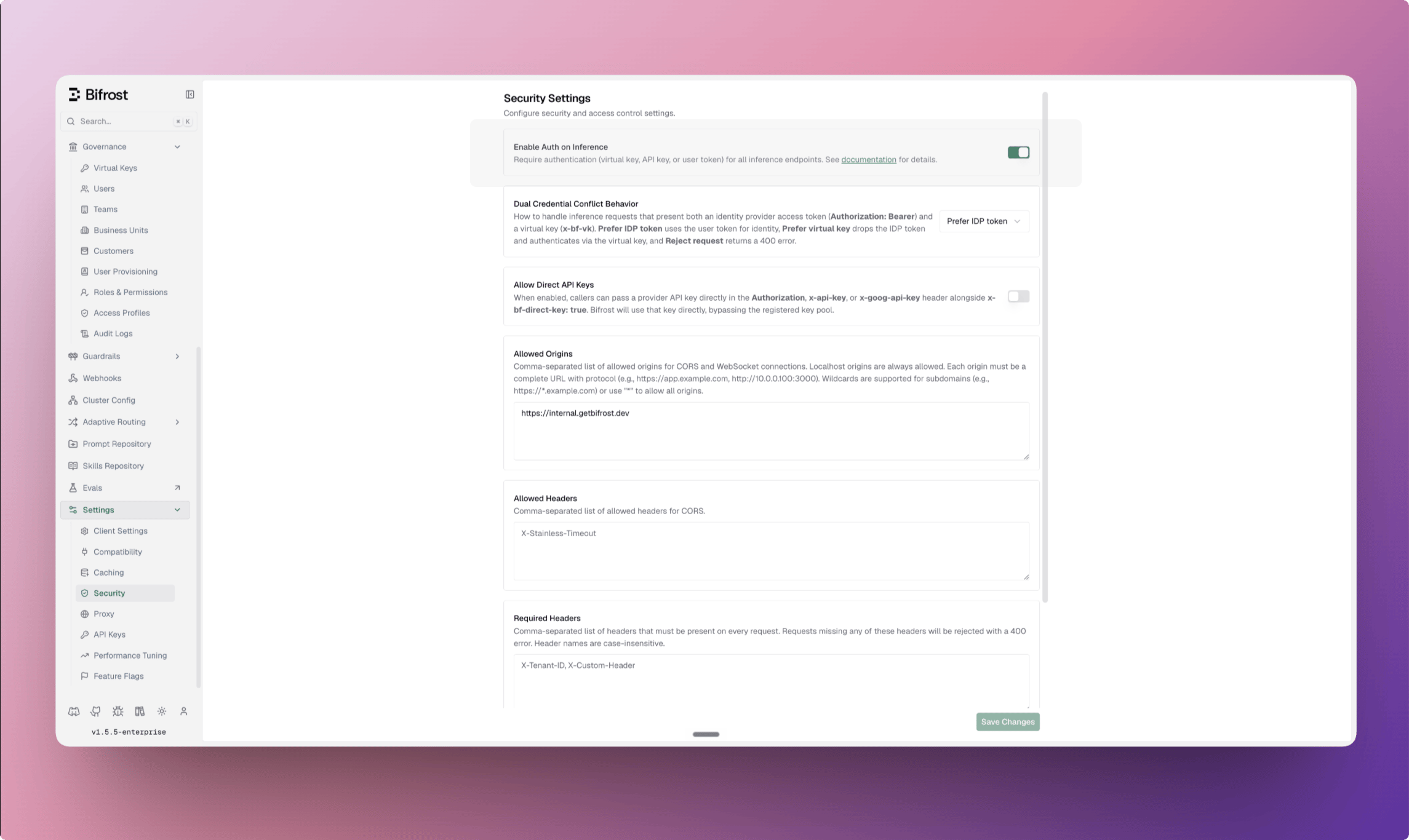
- Go to Settings → Security.
- Turn on Enable Auth on Inference. In OSS, this toggle is labeled Enforce Virtual Keys on Inference.
-
Click Save Changes.
Key Expiry
Virtual keys can optionally carry an expiry timestamp. Once the expiry passes, requests using the key are rejected with a403 and the reason Virtual key has expired. By default the key is not deleted or deactivated, so it stays visible for auditing and can be restored at any time.
- No expiry by default — keys without
expires_atnever expire. - Fail closed — both LLM inference and MCP tool execution are blocked once the key expires.
- Inactive wins — a key that is both inactive and expired is rejected as inactive.
- Restore anytime — extend the expiry to a future timestamp or clear it; access resumes immediately.
- Delete after expire (optional) — a cleanup job that runs once a day removes expired keys. Turn it on for the whole workspace under Settings → Security → Delete Expired Virtual Keys (config.json:
client.delete_expired_virtual_keys, defaultfalse), or per key with the Delete after expire switch (API:delete_after_expire). A key with no value of its own follows the workspace setting;trueorfalseon the key wins over it. Each run that deletes at least one key posts a notification listing the removed keys; runs that find nothing stay silent. The per-key value needs an expiry: setting it without one returns400, and clearing the expiry resets the key to inherit.
- Web UI
- API
- config.json
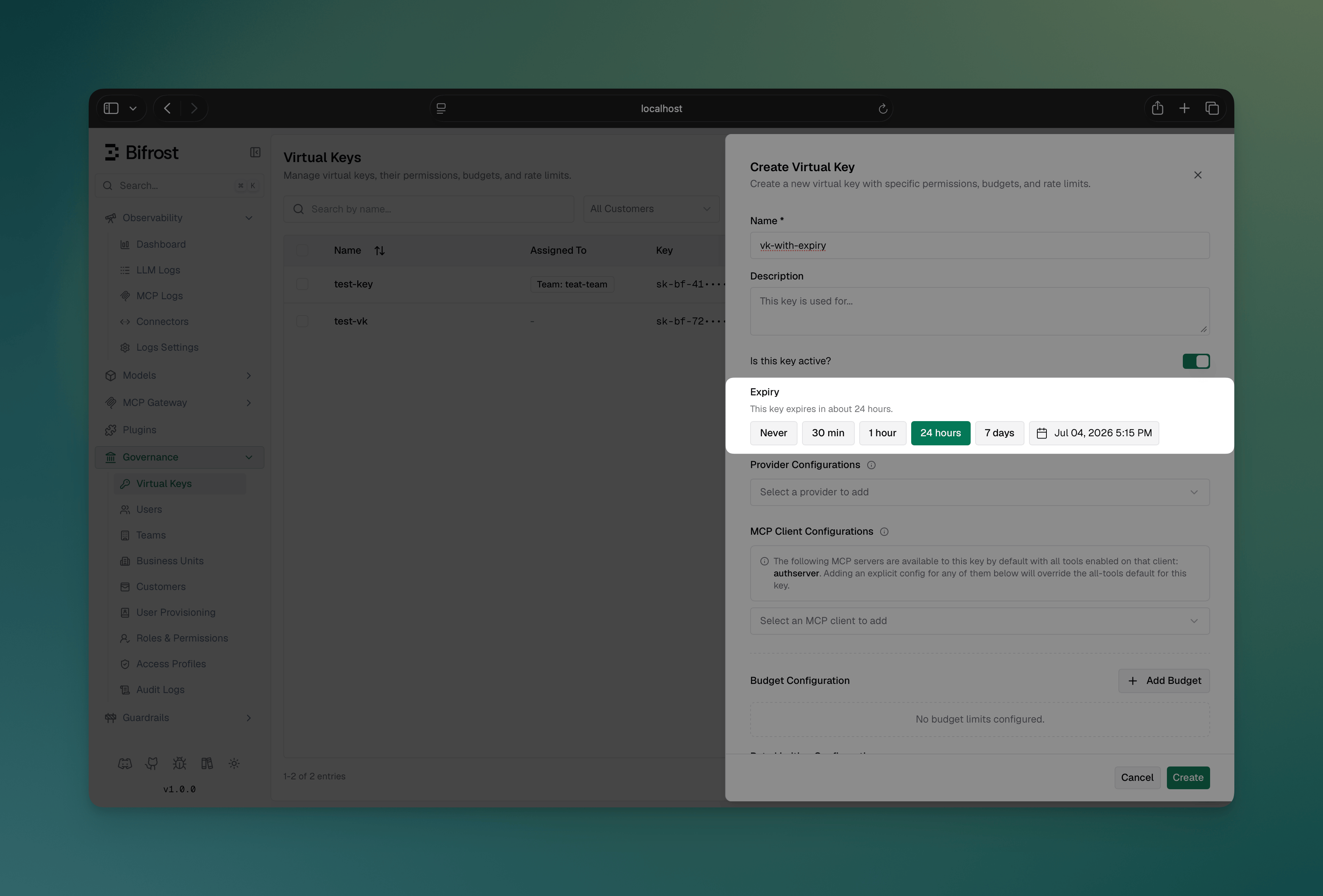
- Go to Virtual Keys and create or edit a key
- In the Expiry section, pick Never, a preset (30 min, 1 hour, 24 hours, 7 days), or choose a custom date and time from the calendar
-
Optionally flip Delete after expire. The switch starts at the workspace setting from Settings → Security; leave it there to follow that setting, or flip it to decide for this key
Authentication and Virtual Keys
Virtual keys and HTTP authentication are independent layers that can work together:
When
disable_auth_on_inference: true (auth disabled):
Virtual keys can be passed via any supported header without additional authentication:
Listing models with a virtual key
When you callGET /v1/models with a virtual key, Bifrost only lists (and only queries) providers that are allowed by that virtual key. This avoids unnecessary “provider not allowed” errors in logs and keeps error-rate metrics meaningful. A key with allow_all_providers enabled lists and queries every configured provider.
?provider=..., that provider must still be allowed by the virtual key or the request will be rejected:
disable_auth_on_inference: false (auth enabled):
You must provide both authentication credentials AND the virtual key. Use x-bf-vk for the virtual key since the Authorization header is used for authentication:
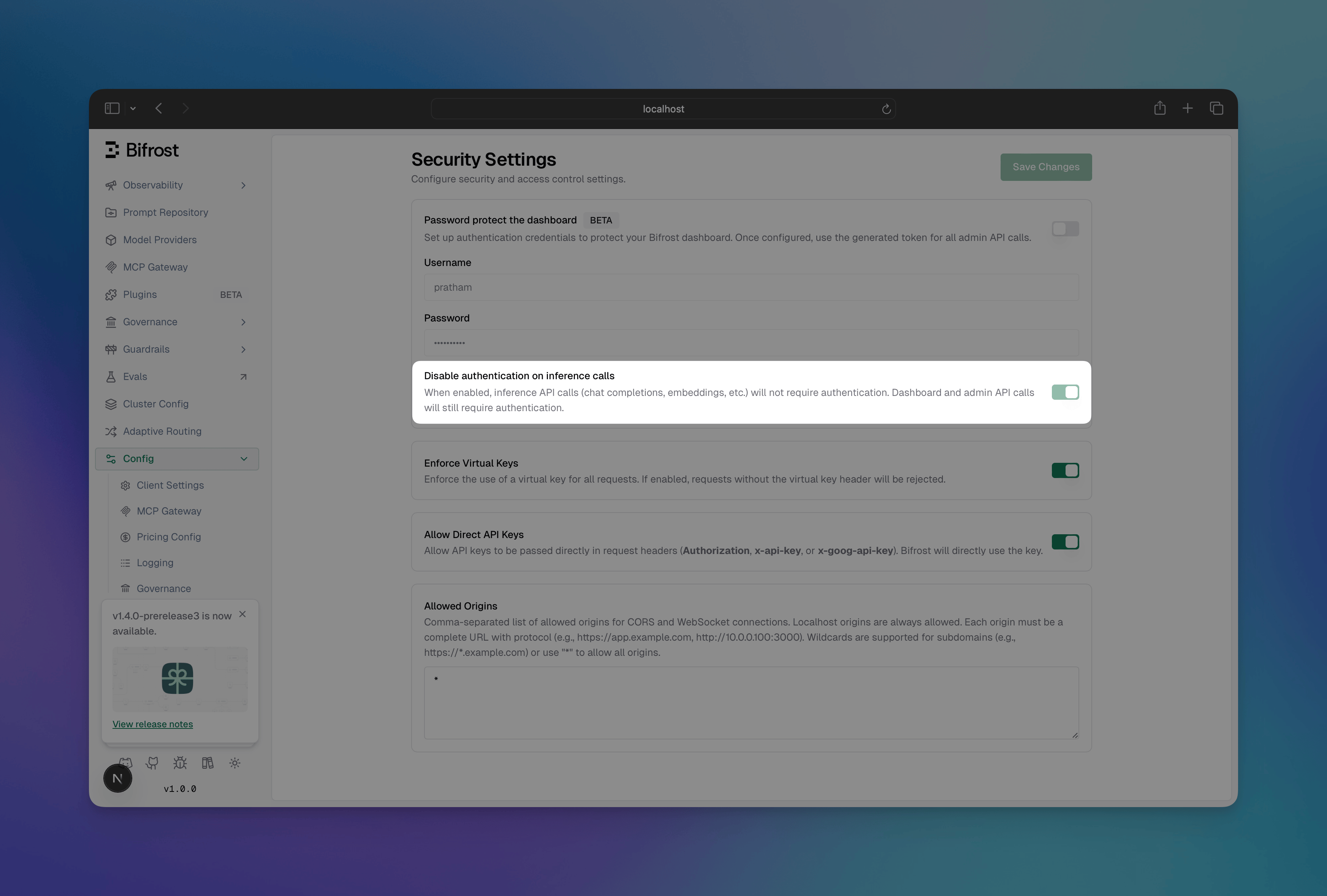
disable_auth_on_inference:
- Web UI
- API
- config.json
- Go to Config → Security
-
Toggle Disable Auth on Inference to enable/disable
Error Responses
type is a top-level field, beside status_code, and error carries only the
message. A client branching on the refusal reads type, not error.type.
- Authentication Required (401), when no credential was presented and virtual keys are mandatory
- Inactive or Expired (403), when the credential is real but may not be used
is inactive: the check runs in that
order and answers on the first that matches. The same type and shape covers an expired
key (virtual key has expired) and an access profile that is inactive or expired.
- Rate Limit Exceeded (429):
rate_limited, ortoken_limited/request_limitedfor the dimension that ran out
- Budget Exceeded (402)
- Model Not Allowed (403)
- Provider Not Allowed (403)
- MCP Tool Not Allowed (403)
Footnotes
-
Authorization can carry virtual keys only when auth is disabled (
disable_auth_on_inference: true). When auth is enabled, Authorization is consumed by authentication and cannot be used for virtual keys. ↩