> ## Documentation Index
> Fetch the complete documentation index at: https://bifrost-dev.mintlify.site/llms.txt
> Use this file to discover all available pages before exploring further.
# Setting up auth
> Learn how to enable basic authentication for the Bifrost dashboard to secure your admin interface and API endpoints.
## Overview
Bifrost provides built-in authentication to protect your dashboard and admin API endpoints. When enabled, users must log in with credentials before accessing the dashboard or making admin API calls. This feature helps secure your Bifrost instance, especially when deployed in production environments.
**Bifrost Enterprise:** you do not need this password toggle if you use single sign-on. Configuring OAuth 2.0 /
OIDC login or inbound SCIM 2.0 provisioning already counts as configured dashboard authentication, and it gates
the dashboard and admin API the same way. See [User Provisioning](/enterprise/user-provisioning).
## Enabling Authentication
### Step 1: Navigate to Security Settings
1. Open your Bifrost dashboard
2. Go to **Workspace** → **Config** → **Security** tab
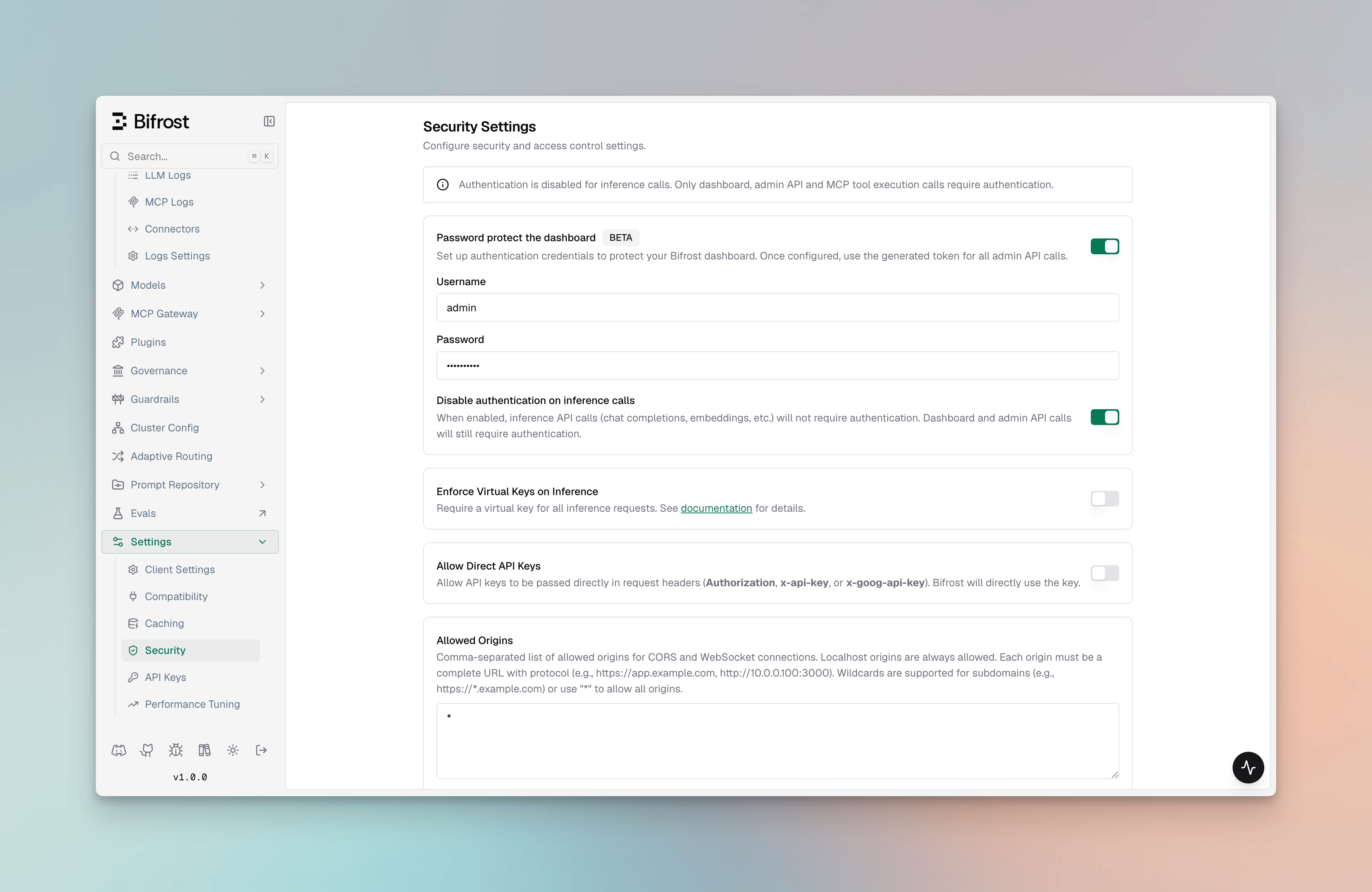
3. Scroll to the **Password protect the dashboard** section
 ### Step 2: Enable Authentication
1. Toggle the **Password protect the dashboard** switch to enable authentication
2. Enter your **Username** in the admin username field
3. Enter your **Password** in the admin password field
The username and password fields are only enabled when the authentication toggle is turned on. Make sure to use a
strong password for security.
**Creating the first admin account:** until an admin account exists, Bifrost's dashboard/admin API is reachable
without a password from anyone who can route to it. To close that window, the first time you enable authentication
on an instance you must also supply a **Setup token**. Your operator configures this value ahead of time via
`setup_token` in `config.json` (accepts a literal value or an `env.VAR_NAME` / `vault.path` reference, same as
`admin_username`/`admin_password`) or the `BIFROST_SETUP_TOKEN` environment variable. Paste that same value into
the **Setup token** field that appears below the password field. The setup token is never persisted and is never
printed to logs. If no setup token is configured, creating the first admin account is rejected until you set one
* and because every node in a multi-node deployment reads the same configured value, there's no need to target a
specific node.
Setup token is required for version 2.0.0-prerelease3 and above.
### Step 3: Configure Inference Call Authentication (Optional)
By default, when authentication is enabled, all API calls (including inference calls) require authentication. You can optionally disable authentication for inference calls while keeping it enabled for the dashboard and admin API:
1. Enable the **Disable authentication on inference calls** toggle
2. When enabled:
* Dashboard and admin API calls will still require authentication
* Inference API calls (chat completions, embeddings, etc.) will not require authentication
* MCP tool execution calls will still require authentication
This option is useful if you want to protect your dashboard and admin functions while allowing public access to
inference endpoints.
### Step 4: Configure Whitelisted Routes (Optional)
You can configure specific routes that bypass the authentication middleware entirely. Requests to these routes will not require authentication, even when auth is enabled.
1. Scroll to the **Whitelisted Routes** section
2. Enter a comma-separated list of routes in the textarea
### Step 2: Enable Authentication
1. Toggle the **Password protect the dashboard** switch to enable authentication
2. Enter your **Username** in the admin username field
3. Enter your **Password** in the admin password field
The username and password fields are only enabled when the authentication toggle is turned on. Make sure to use a
strong password for security.
**Creating the first admin account:** until an admin account exists, Bifrost's dashboard/admin API is reachable
without a password from anyone who can route to it. To close that window, the first time you enable authentication
on an instance you must also supply a **Setup token**. Your operator configures this value ahead of time via
`setup_token` in `config.json` (accepts a literal value or an `env.VAR_NAME` / `vault.path` reference, same as
`admin_username`/`admin_password`) or the `BIFROST_SETUP_TOKEN` environment variable. Paste that same value into
the **Setup token** field that appears below the password field. The setup token is never persisted and is never
printed to logs. If no setup token is configured, creating the first admin account is rejected until you set one
* and because every node in a multi-node deployment reads the same configured value, there's no need to target a
specific node.
Setup token is required for version 2.0.0-prerelease3 and above.
### Step 3: Configure Inference Call Authentication (Optional)
By default, when authentication is enabled, all API calls (including inference calls) require authentication. You can optionally disable authentication for inference calls while keeping it enabled for the dashboard and admin API:
1. Enable the **Disable authentication on inference calls** toggle
2. When enabled:
* Dashboard and admin API calls will still require authentication
* Inference API calls (chat completions, embeddings, etc.) will not require authentication
* MCP tool execution calls will still require authentication
This option is useful if you want to protect your dashboard and admin functions while allowing public access to
inference endpoints.
### Step 4: Configure Whitelisted Routes (Optional)
You can configure specific routes that bypass the authentication middleware entirely. Requests to these routes will not require authentication, even when auth is enabled.
1. Scroll to the **Whitelisted Routes** section
2. Enter a comma-separated list of routes in the textarea
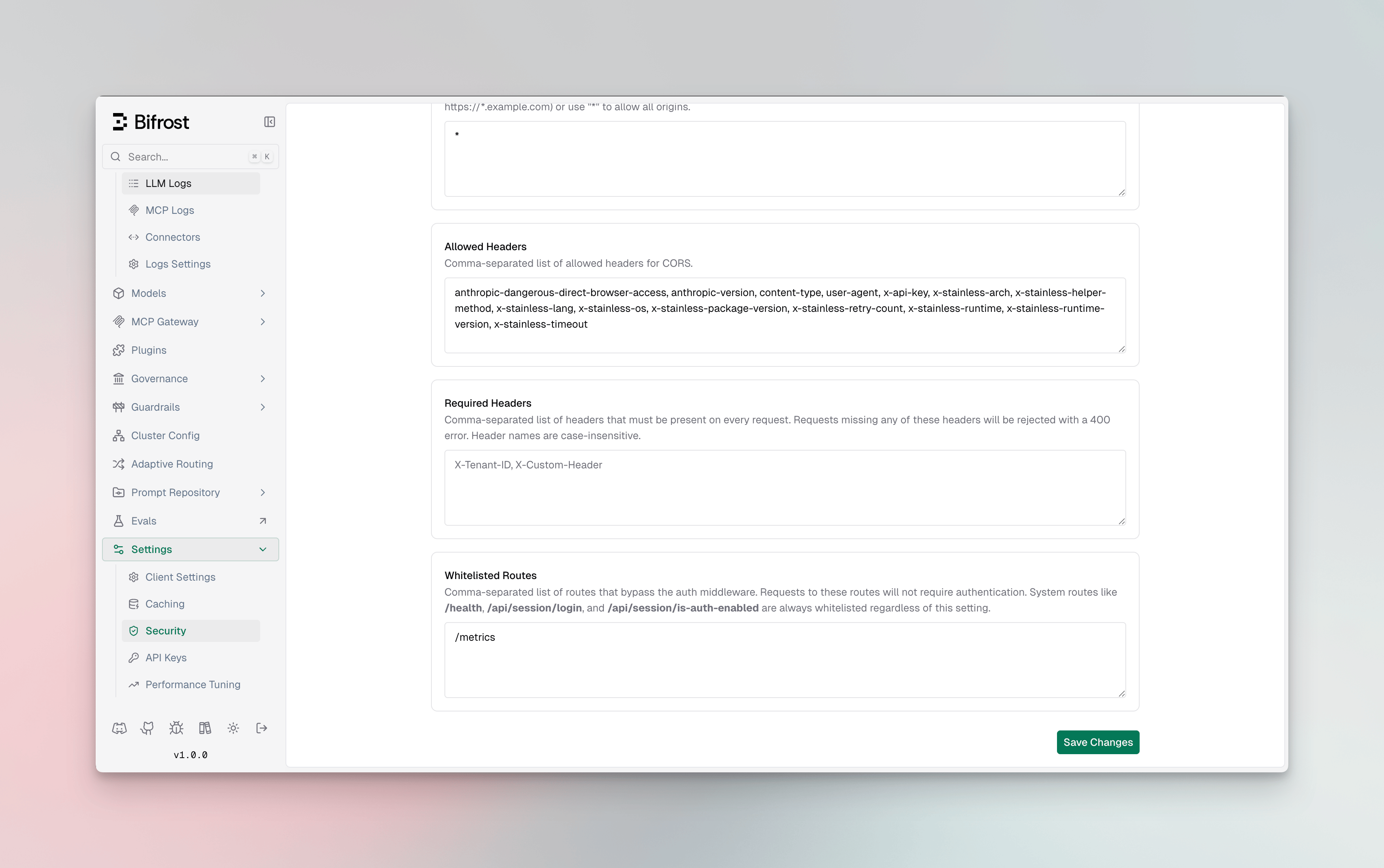 **Wildcard support:** Routes ending with `*` are treated as prefix matches. For example, `/api/webhook*` will match `/api/webhook`, `/api/webhook/v1`, `/api/webhook/github`, etc.
**Example values:**
```
/api/custom-webhook, /api/public-endpoint, /api/webhook*
```
System routes like `/health`, `/api/session/login`, `/api/session/is-auth-enabled`, `/api/oauth/callback`, and
`/api/info` are always whitelisted regardless of this setting. Whitelisted routes only apply to dashboard and admin
API endpoints - inference endpoints have their own toggle (see Step 3).
### Step 5: Save Changes
1. Click **Save Changes** to apply your authentication settings
2. Changes take effect immediately - no restart required
## Logging In
Once authentication is enabled:
1. Navigate to your Bifrost dashboard URL
2. You will be automatically redirected to the login page
3. Enter your configured username and password
4. Click **Sign in**
After successful login, you'll be redirected to the dashboard. Your session will remain active for 30 days, and you'll need to log in again after the session expires.
## Authentication Methods
Bifrost supports different authentication methods depending on the type of request:
### Dashboard Access
* **Bearer Token Authentication**: The dashboard uses Bearer token authentication
* Tokens are automatically managed through the login session
* Tokens are stored in browser localStorage and sent with each API request
### API Calls
When authentication is enabled, API calls can be made using
* **Basic Authentication**: Username and password encoded as base64 via HTTP Basic auth
* **Bearer Token**: Session token issued after login (Bearer token from session)
When authentication is enabled for inference calls (i.e., the "Disable authentication on inference calls" toggle is OFF), inference calls can be made using:
* **Basic Authentication**: Username and Password in Basic auth
* **Bearer Token**: base64 string of username:password as bearer token
### Whitelisted Routes
When a route is added to the whitelisted routes list in Security settings, requests to that path bypass authentication entirely - no Basic Auth or Bearer Token is required. This applies only to dashboard and admin API endpoints. Inference endpoints are controlled separately via the "Disable authentication on inference calls" toggle.
### Example: Using Basic Auth for Inference Calls
```bash theme={null}
# Using curl with Basic Auth
curl -X POST http://localhost:8080/v1/chat/completions \
-u "your-username:your-password" \
-H "Content-Type: application/json" \
-d '{
"model": "openai/gpt-4o",
"messages": [{"role": "user", "content": "Hello!"}]
}'
```
## Important Notes
* **No Restart Required**: Authentication changes take effect immediately without requiring a server restart
* **Session Duration**: Login sessions last for 30 days
* **Password Security**: Passwords are hashed and stored securely in the database
* **Inference Calls**: If you disable authentication on inference calls, only dashboard and admin API endpoints will be protected
* **Whitelisted Routes**: Routes configured in Security settings bypass auth on dashboard/admin API endpoints only. Use `*` at the end of a route for prefix matching (e.g., `/api/webhook*`)
## Disabling Authentication
To disable authentication:
1. Navigate to **Workspace** → **Config** → **Security**
2. Toggle off the **Password protect the dashboard** switch
3. Click **Save Changes**
After disabling, the dashboard will be accessible without authentication immediately.
**Wildcard support:** Routes ending with `*` are treated as prefix matches. For example, `/api/webhook*` will match `/api/webhook`, `/api/webhook/v1`, `/api/webhook/github`, etc.
**Example values:**
```
/api/custom-webhook, /api/public-endpoint, /api/webhook*
```
System routes like `/health`, `/api/session/login`, `/api/session/is-auth-enabled`, `/api/oauth/callback`, and
`/api/info` are always whitelisted regardless of this setting. Whitelisted routes only apply to dashboard and admin
API endpoints - inference endpoints have their own toggle (see Step 3).
### Step 5: Save Changes
1. Click **Save Changes** to apply your authentication settings
2. Changes take effect immediately - no restart required
## Logging In
Once authentication is enabled:
1. Navigate to your Bifrost dashboard URL
2. You will be automatically redirected to the login page
3. Enter your configured username and password
4. Click **Sign in**
After successful login, you'll be redirected to the dashboard. Your session will remain active for 30 days, and you'll need to log in again after the session expires.
## Authentication Methods
Bifrost supports different authentication methods depending on the type of request:
### Dashboard Access
* **Bearer Token Authentication**: The dashboard uses Bearer token authentication
* Tokens are automatically managed through the login session
* Tokens are stored in browser localStorage and sent with each API request
### API Calls
When authentication is enabled, API calls can be made using
* **Basic Authentication**: Username and password encoded as base64 via HTTP Basic auth
* **Bearer Token**: Session token issued after login (Bearer token from session)
When authentication is enabled for inference calls (i.e., the "Disable authentication on inference calls" toggle is OFF), inference calls can be made using:
* **Basic Authentication**: Username and Password in Basic auth
* **Bearer Token**: base64 string of username:password as bearer token
### Whitelisted Routes
When a route is added to the whitelisted routes list in Security settings, requests to that path bypass authentication entirely - no Basic Auth or Bearer Token is required. This applies only to dashboard and admin API endpoints. Inference endpoints are controlled separately via the "Disable authentication on inference calls" toggle.
### Example: Using Basic Auth for Inference Calls
```bash theme={null}
# Using curl with Basic Auth
curl -X POST http://localhost:8080/v1/chat/completions \
-u "your-username:your-password" \
-H "Content-Type: application/json" \
-d '{
"model": "openai/gpt-4o",
"messages": [{"role": "user", "content": "Hello!"}]
}'
```
## Important Notes
* **No Restart Required**: Authentication changes take effect immediately without requiring a server restart
* **Session Duration**: Login sessions last for 30 days
* **Password Security**: Passwords are hashed and stored securely in the database
* **Inference Calls**: If you disable authentication on inference calls, only dashboard and admin API endpoints will be protected
* **Whitelisted Routes**: Routes configured in Security settings bypass auth on dashboard/admin API endpoints only. Use `*` at the end of a route for prefix matching (e.g., `/api/webhook*`)
## Disabling Authentication
To disable authentication:
1. Navigate to **Workspace** → **Config** → **Security**
2. Toggle off the **Password protect the dashboard** switch
3. Click **Save Changes**
After disabling, the dashboard will be accessible without authentication immediately.