> ## Documentation Index
> Fetch the complete documentation index at: https://bifrost-dev.mintlify.site/llms.txt
> Use this file to discover all available pages before exploring further.
# Connecting to MCP Servers
> Connect Bifrost to external MCP servers via STDIO, HTTP, or SSE protocols.
## Overview
Bifrost can connect to any MCP-compatible server to discover and execute tools. Each connection is called an **MCP Client** in Bifrost terminology.
## Connection Types
Bifrost supports three connection protocols:
| Type | Description | Best For |
| --------- | ----------------------------------------------------- | ------------------------------------------- |
| **STDIO** | Spawns a subprocess and communicates via stdin/stdout | Local tools, CLI utilities, scripts |
| **HTTP** | Sends requests to an HTTP endpoint | Remote APIs, microservices, cloud functions |
| **SSE** | Server-Sent Events for persistent connections | Real-time data, streaming tools |
Authentication is configured separately from the connection protocol. STDIO inherits its environment from the spawned subprocess and has no per-call auth. HTTP and SSE support five auth modes: `none`, `headers`, `oauth`, `per_user_oauth`, `per_user_headers`. See [Authentication →](./auth/overview).
### STDIO Connections
STDIO connections launch external processes and communicate via standard input/output. Best for local tools and scripts.
```json theme={null}
{
"name": "filesystem",
"connection_type": "stdio",
"stdio_config": {
"command": "npx",
"args": ["-y", "@anthropic/mcp-filesystem"],
"envs": ["HOME", "PATH"]
},
"auth_type": "none",
"tools_to_execute": ["*"]
}
```
**Use Cases:**
* Local filesystem operations
* Python/Node.js MCP servers
* CLI utilities and scripts
* Database tools with local credentials
**Docker Users:** When running Bifrost in Docker, STDIO connections may not work if the required commands (e.g., `npx`, `python`) are not installed in the container. For STDIO-based MCP servers, build a custom Docker image that includes the necessary dependencies, or use HTTP/SSE connections to externally hosted MCP servers.
### HTTP Connections
HTTP connections communicate with MCP servers via HTTP requests. Ideal for remote APIs, microservices, and cloud-hosted MCP services.
```json theme={null}
{
"name": "web-search",
"connection_type": "http",
"connection_string": "https://mcp-server.example.com/mcp",
"auth_type": "none",
"tools_to_execute": ["*"]
}
```
For authenticated upstream servers, see [Authentication →](./auth/overview) and pick the auth type that matches: [Headers](./auth/headers), [OAuth 2.0](./auth/oauth), [Per-User OAuth](./auth/per-user-oauth), or [Per-User Headers](./auth/per-user-headers).
#### Session Stickiness (HTTP only)
For a **server-level** client (`auth_type` `oauth`, `headers`, or `none` — not the per-user auth types below, which are always per-call regardless of this setting), `needs_session_stickiness` controls whether Bifrost holds one persistent upstream connection or dials fresh for every tool call:
| Value | Behavior |
| --------------------------- | ------------------------------------------------------------------------------------------------------------------------------------------------------------------------------------------------------------------------------------------------------------------------------------------------------------ |
| `true` | **Sticky.** One shared connection is opened once and reused for every tool call, with an automatic health-checked reconnect on failure. Lower per-call latency; if the connection's credential dies, the client needs an admin `reauthorize` to recover. |
| `false` / omitted (default) | **Per-call.** A fresh connection (and, for `oauth`, a fresh credential resolution) is opened for every tool call and closed immediately after. Slightly higher per-call latency, but a dead upstream credential only affects the calls made while it's dead — nothing to manually reconnect once it's fixed. |
Only meaningful for `connection_type: "http"` — `sse` and `stdio` connections are always sticky (an SSE session is inherently bound to its open stream, and STDIO needs a persistent subprocess), and explicitly setting `needs_session_stickiness: false` on either is rejected at creation.
Toggle **Session Stickiness** in the client's create/edit sheet (HTTP connections only):
 ```bash theme={null}
curl -X POST http://localhost:8080/api/mcp/client \
-H "Content-Type: application/json" \
-d '{
"name": "shared-api",
"connection_type": "http",
"connection_string": "https://mcp-server.example.com/mcp",
"auth_type": "oauth",
"needs_session_stickiness": false
}'
```
Omit the field to get the default (per-call). Existing clients can flip it via `PUT /api/mcp/client/{id}`.
```json theme={null}
{
"mcp": {
"client_configs": [
{
"name": "shared-api",
"connection_type": "http",
"connection_string": "https://mcp-server.example.com/mcp",
"auth_type": "oauth",
"needs_session_stickiness": false
}
]
}
}
```
### SSE Connections
Server-Sent Events (SSE) connections provide a persistent transport to MCP servers that stream events. Supports the same auth options as HTTP.
```json theme={null}
{
"name": "live-data",
"connection_type": "sse",
"connection_string": "https://stream.example.com/mcp/sse",
"auth_type": "none",
"tools_to_execute": ["*"]
}
```
**Use Cases:**
* Real-time market data
* Live system monitoring
* Event-driven workflows
* Anything where the MCP server pushes notifications
***
## Gateway Setup
### Adding an MCP Client
1. Navigate to **MCP Gateway** in the sidebar - you'll see a table of all registered servers
```bash theme={null}
curl -X POST http://localhost:8080/api/mcp/client \
-H "Content-Type: application/json" \
-d '{
"name": "shared-api",
"connection_type": "http",
"connection_string": "https://mcp-server.example.com/mcp",
"auth_type": "oauth",
"needs_session_stickiness": false
}'
```
Omit the field to get the default (per-call). Existing clients can flip it via `PUT /api/mcp/client/{id}`.
```json theme={null}
{
"mcp": {
"client_configs": [
{
"name": "shared-api",
"connection_type": "http",
"connection_string": "https://mcp-server.example.com/mcp",
"auth_type": "oauth",
"needs_session_stickiness": false
}
]
}
}
```
### SSE Connections
Server-Sent Events (SSE) connections provide a persistent transport to MCP servers that stream events. Supports the same auth options as HTTP.
```json theme={null}
{
"name": "live-data",
"connection_type": "sse",
"connection_string": "https://stream.example.com/mcp/sse",
"auth_type": "none",
"tools_to_execute": ["*"]
}
```
**Use Cases:**
* Real-time market data
* Live system monitoring
* Event-driven workflows
* Anything where the MCP server pushes notifications
***
## Gateway Setup
### Adding an MCP Client
1. Navigate to **MCP Gateway** in the sidebar - you'll see a table of all registered servers
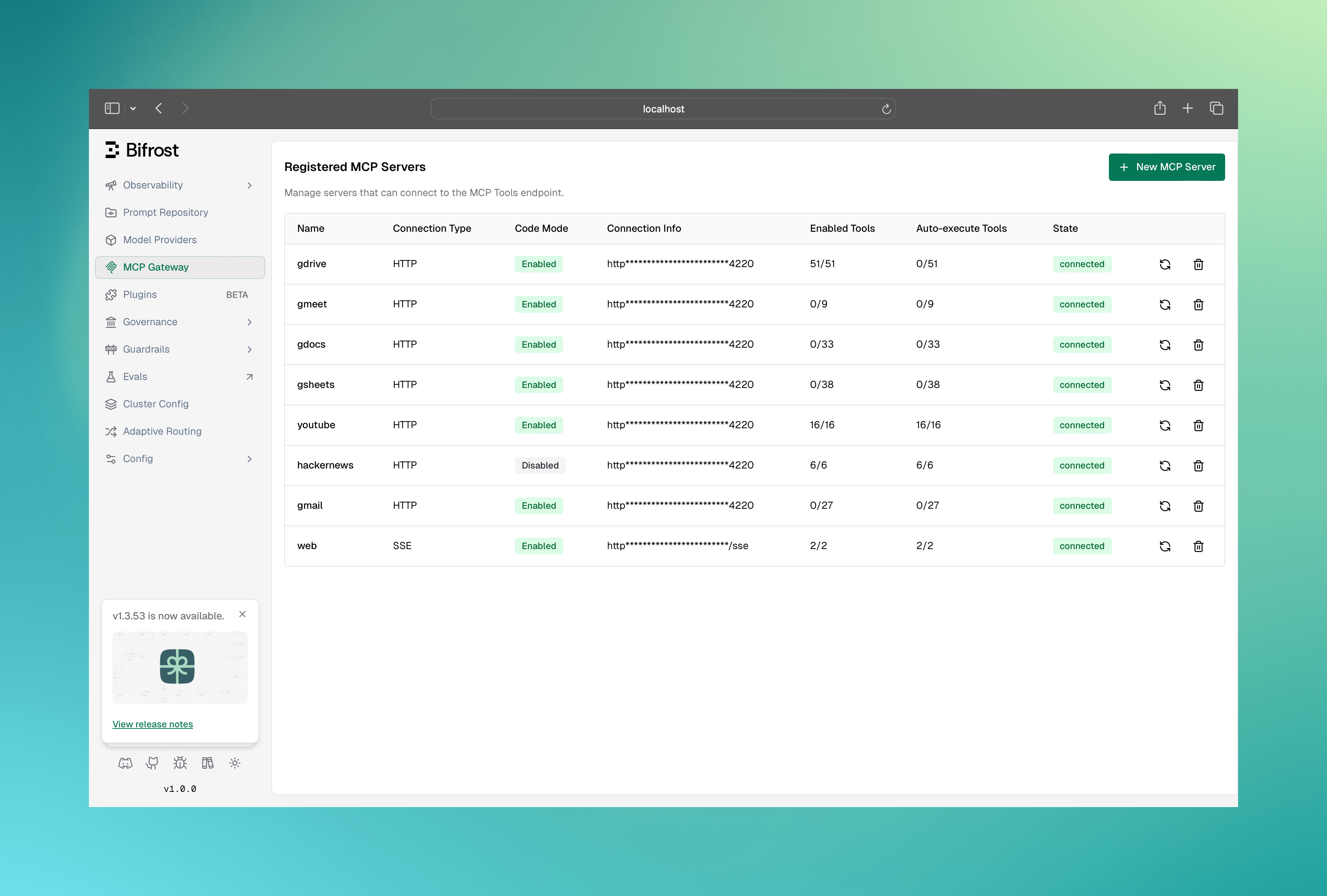 2. Click **New MCP Server** button to open the creation form
3. Fill in the connection details:
2. Click **New MCP Server** button to open the creation form
3. Fill in the connection details:
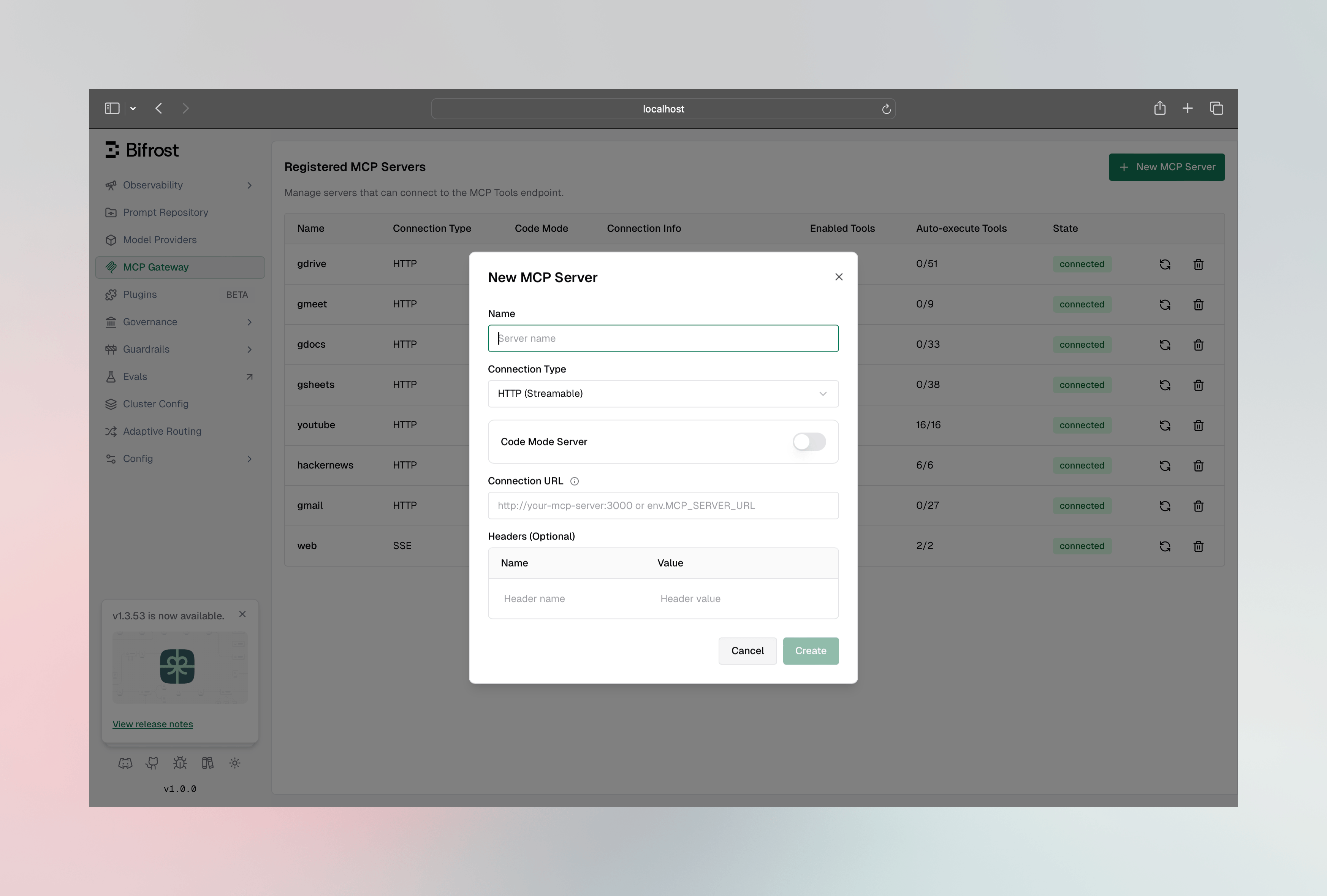 **Fields:**
* **Name**: Unique identifier (no spaces or hyphens, ASCII only)
* **Connection Type**: STDIO, HTTP, or SSE
* **For STDIO**: Command, arguments, and environment variables
* **For HTTP/SSE**: Connection URL
4. Click **Create** to connect
### Viewing and Managing Connected Tools
Once connected, click on any client row to open the configuration sheet:
**Fields:**
* **Name**: Unique identifier (no spaces or hyphens, ASCII only)
* **Connection Type**: STDIO, HTTP, or SSE
* **For STDIO**: Command, arguments, and environment variables
* **For HTTP/SSE**: Connection URL
4. Click **Create** to connect
### Viewing and Managing Connected Tools
Once connected, click on any client row to open the configuration sheet:
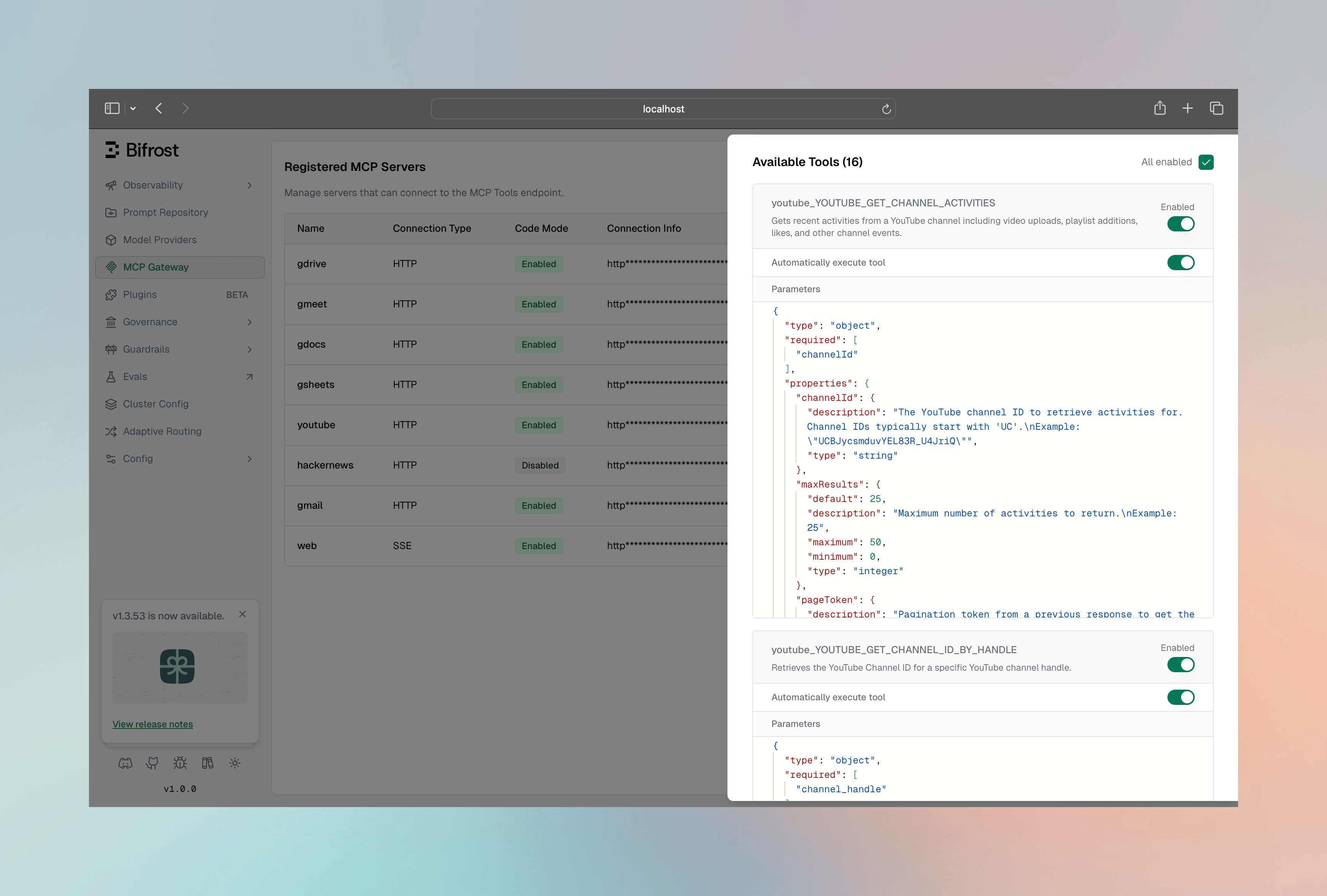 Here you can:
* View all discovered tools with their descriptions and parameters
* Enable/disable individual tools via toggle switches
* Configure auto-execution for specific tools
* Edit custom headers for HTTP/SSE connections
* View the full connection configuration as JSON
### Add STDIO Client
```bash theme={null}
curl -X POST http://localhost:8080/api/mcp/client \
-H "Content-Type: application/json" \
-d '{
"name": "filesystem",
"connection_type": "stdio",
"stdio_config": {
"command": "npx",
"args": ["-y", "@anthropic/mcp-filesystem"],
"envs": ["HOME", "PATH"]
},
"tools_to_execute": ["*"]
}'
```
### Add HTTP Client
```bash theme={null}
curl -X POST http://localhost:8080/api/mcp/client \
-H "Content-Type: application/json" \
-d '{
"name": "web_search",
"connection_type": "http",
"connection_string": "http://localhost:3001/mcp",
"tools_to_execute": ["*"]
}'
```
### Add SSE Client
```bash theme={null}
curl -X POST http://localhost:8080/api/mcp/client \
-H "Content-Type: application/json" \
-d '{
"name": "realtime_data",
"connection_type": "sse",
"connection_string": "https://api.example.com/mcp/sse",
"tools_to_execute": ["*"]
}'
```
### List All Clients
```bash theme={null}
curl http://localhost:8080/api/mcp/clients
```
Response:
```json theme={null}
[
{
"config": {
"id": "abc123",
"name": "filesystem",
"connection_type": "stdio",
"stdio_config": {
"command": "npx",
"args": ["-y", "@anthropic/mcp-filesystem"]
}
},
"tools": [
{"name": "read_file", "description": "Read contents of a file"},
{"name": "write_file", "description": "Write contents to a file"},
{"name": "list_directory", "description": "List directory contents"}
],
"state": "healthy"
}
]
```
Configure MCP clients in your `config.json`:
```json theme={null}
{
"mcp": {
"client_configs": [
{
"name": "filesystem",
"connection_type": "stdio",
"is_ping_available": true,
"stdio_config": {
"command": "npx",
"args": ["-y", "@anthropic/mcp-filesystem"],
"envs": ["HOME", "PATH"]
},
"tools_to_execute": ["*"]
},
{
"name": "web_search",
"connection_type": "http",
"connection_string": "env.WEB_SEARCH_MCP_URL",
"is_ping_available": false,
"tools_to_execute": ["search", "fetch_url"]
},
{
"name": "database",
"connection_type": "sse",
"connection_string": "https://db-mcp.example.com/sse",
"is_ping_available": true,
"tools_to_execute": []
}
]
}
}
```
Use `env.VARIABLE_NAME` syntax to reference environment variables for sensitive values like URLs with API keys.
#### Auth-aware clients in `config.json`
All six auth types can be declared in `config.json`. The four that need an admin verification step (`oauth`, `per_user_oauth`, `per_user_headers`, `token_exchange`) boot into a **`pending_verification`** runtime state and surface an admin CTA in the MCP Gateway UI:
```json theme={null}
{
"mcp": {
"client_configs": [
{
"name": "google-drive-shared",
"connection_type": "http",
"connection_string": "https://mcp.google.com/drive",
"auth_type": "oauth",
"oauth_config": {
"client_id": "your-client-id",
"client_secret": "env.GOOGLE_OAUTH_CLIENT_SECRET",
"scopes": ["drive.readonly"]
},
"tools_to_execute": ["*"]
},
{
"name": "github-per-user",
"connection_type": "http",
"connection_string": "https://mcp.github.com/v1",
"auth_type": "per_user_oauth",
"oauth_config": { "scopes": ["repo"] },
"tools_to_execute": ["*"]
},
{
"name": "internal-api",
"connection_type": "http",
"connection_string": "https://api.internal.example.com/mcp",
"auth_type": "per_user_headers",
"per_user_header_keys": ["authorization", "x-tenant-id"],
"tools_to_execute": ["*"]
}
]
}
}
```
For `oauth` / `per_user_oauth`, the `oauth_config` block is optional and each inner field is optional — RFC 8414 discovery and RFC 7591 dynamic client registration fill the gaps off `connection_string` at admin-click time. See [MCP Auth](/mcp/auth/overview) for the per-auth-type details and the post-boot verification UX.
Deleting a config.json-declared client from the dashboard is temporary: the file entry recreates it at the next restart (freshly, in `pending_verification` for auth types that need verification). For a permanent delete, remove the entry from `config.json` as well.
***
## Go SDK Setup
Configure MCP in your Bifrost initialization:
```go theme={null}
package main
import (
"context"
bifrost "github.com/maximhq/bifrost/core"
"github.com/maximhq/bifrost/core/schemas"
)
func main() {
mcpConfig := &schemas.MCPConfig{
ClientConfigs: []*schemas.MCPClientConfig{
{
Name: "filesystem",
ConnectionType: schemas.MCPConnectionTypeSTDIO,
IsPingAvailable: true, // Use lightweight ping for health checks
StdioConfig: &schemas.MCPStdioConfig{
Command: "npx",
Args: []string{"-y", "@anthropic/mcp-filesystem"},
Envs: []string{"HOME", "PATH"},
},
ToolsToExecute: []string{"*"},
},
{
Name: "web_search",
ConnectionType: schemas.MCPConnectionTypeHTTP,
ConnectionString: bifrost.Ptr("http://localhost:3001/mcp"),
IsPingAvailable: false, // Use listTools for health checks
ToolsToExecute: []string{"search", "fetch_url"},
},
},
}
client, err := bifrost.Init(context.Background(), schemas.BifrostConfig{
Account: account,
MCPConfig: mcpConfig,
Logger: bifrost.NewDefaultLogger(schemas.LogLevelInfo),
})
if err != nil {
panic(err)
}
}
```
### Tools To Execute Semantics
The `ToolsToExecute` field controls which tools from the client are available:
| Value | Behavior |
| -------------------- | --------------------------------------- |
| `["*"]` | All tools from this client are included |
| `[]` or `nil` | No tools included (deny-by-default) |
| `["tool1", "tool2"]` | Only specified tools are included |
### Tools To Auto Execute (Agent Mode)
The `ToolsToAutoExecute` field controls which tools can be automatically executed in [Agent Mode](./agent-mode):
| Value | Behavior |
| -------------------- | ----------------------------------------------------- |
| `["*"]` | All tools are auto-executed |
| `[]` or `nil` | No tools are auto-executed (manual approval required) |
| `["tool1", "tool2"]` | Only specified tools are auto-executed |
A tool must be in **both** `ToolsToExecute` and `ToolsToAutoExecute` to be auto-executed. If a tool is in `ToolsToAutoExecute` but not in `ToolsToExecute`, it will be skipped.
**Example configuration:**
```go theme={null}
{
Name: "filesystem",
ConnectionType: schemas.MCPConnectionTypeSTDIO,
StdioConfig: &schemas.MCPStdioConfig{
Command: "npx",
Args: []string{"-y", "@anthropic/mcp-filesystem"},
},
ToolsToExecute: []string{"*"}, // All tools available
ToolsToAutoExecute: []string{"read_file", "list_directory"}, // Only these auto-execute
}
```
### Global Tool Manager Settings
Tool-manager behaviour is configured once and applies to every MCP server. There are no per-server overrides for these four knobs — the only per-server tool-manager-adjacent setting is `tool_sync_interval` on each `client_configs[]` entry.
| Field | Type | Default | Description |
| -------------------------- | ---------------- | ------- | ---------------------------------------------------------------------------------------------------------------------------- |
| `tool_execution_timeout` | integer / string | `30` | Tool-call upstream timeout. Integer = seconds, string = Go duration (e.g. `"2m"`). |
| `max_agent_depth` | integer | `10` | Maximum recursion depth in [agent mode](./agent-mode). |
| `code_mode_binding_level` | string | — | `"server"` or `"tool"` — controls how tools are exposed in the [code-mode](./code-mode) VFS. |
| `disable_auto_tool_inject` | boolean | `false` | When `true`, MCP tools are not auto-injected into requests; callers must opt in via `x-bf-mcp-include-tools` (for LLM calls) |
The MCP configuration panel under **Settings → MCP** exposes these four knobs plus `tool_sync_interval`:
Here you can:
* View all discovered tools with their descriptions and parameters
* Enable/disable individual tools via toggle switches
* Configure auto-execution for specific tools
* Edit custom headers for HTTP/SSE connections
* View the full connection configuration as JSON
### Add STDIO Client
```bash theme={null}
curl -X POST http://localhost:8080/api/mcp/client \
-H "Content-Type: application/json" \
-d '{
"name": "filesystem",
"connection_type": "stdio",
"stdio_config": {
"command": "npx",
"args": ["-y", "@anthropic/mcp-filesystem"],
"envs": ["HOME", "PATH"]
},
"tools_to_execute": ["*"]
}'
```
### Add HTTP Client
```bash theme={null}
curl -X POST http://localhost:8080/api/mcp/client \
-H "Content-Type: application/json" \
-d '{
"name": "web_search",
"connection_type": "http",
"connection_string": "http://localhost:3001/mcp",
"tools_to_execute": ["*"]
}'
```
### Add SSE Client
```bash theme={null}
curl -X POST http://localhost:8080/api/mcp/client \
-H "Content-Type: application/json" \
-d '{
"name": "realtime_data",
"connection_type": "sse",
"connection_string": "https://api.example.com/mcp/sse",
"tools_to_execute": ["*"]
}'
```
### List All Clients
```bash theme={null}
curl http://localhost:8080/api/mcp/clients
```
Response:
```json theme={null}
[
{
"config": {
"id": "abc123",
"name": "filesystem",
"connection_type": "stdio",
"stdio_config": {
"command": "npx",
"args": ["-y", "@anthropic/mcp-filesystem"]
}
},
"tools": [
{"name": "read_file", "description": "Read contents of a file"},
{"name": "write_file", "description": "Write contents to a file"},
{"name": "list_directory", "description": "List directory contents"}
],
"state": "healthy"
}
]
```
Configure MCP clients in your `config.json`:
```json theme={null}
{
"mcp": {
"client_configs": [
{
"name": "filesystem",
"connection_type": "stdio",
"is_ping_available": true,
"stdio_config": {
"command": "npx",
"args": ["-y", "@anthropic/mcp-filesystem"],
"envs": ["HOME", "PATH"]
},
"tools_to_execute": ["*"]
},
{
"name": "web_search",
"connection_type": "http",
"connection_string": "env.WEB_SEARCH_MCP_URL",
"is_ping_available": false,
"tools_to_execute": ["search", "fetch_url"]
},
{
"name": "database",
"connection_type": "sse",
"connection_string": "https://db-mcp.example.com/sse",
"is_ping_available": true,
"tools_to_execute": []
}
]
}
}
```
Use `env.VARIABLE_NAME` syntax to reference environment variables for sensitive values like URLs with API keys.
#### Auth-aware clients in `config.json`
All six auth types can be declared in `config.json`. The four that need an admin verification step (`oauth`, `per_user_oauth`, `per_user_headers`, `token_exchange`) boot into a **`pending_verification`** runtime state and surface an admin CTA in the MCP Gateway UI:
```json theme={null}
{
"mcp": {
"client_configs": [
{
"name": "google-drive-shared",
"connection_type": "http",
"connection_string": "https://mcp.google.com/drive",
"auth_type": "oauth",
"oauth_config": {
"client_id": "your-client-id",
"client_secret": "env.GOOGLE_OAUTH_CLIENT_SECRET",
"scopes": ["drive.readonly"]
},
"tools_to_execute": ["*"]
},
{
"name": "github-per-user",
"connection_type": "http",
"connection_string": "https://mcp.github.com/v1",
"auth_type": "per_user_oauth",
"oauth_config": { "scopes": ["repo"] },
"tools_to_execute": ["*"]
},
{
"name": "internal-api",
"connection_type": "http",
"connection_string": "https://api.internal.example.com/mcp",
"auth_type": "per_user_headers",
"per_user_header_keys": ["authorization", "x-tenant-id"],
"tools_to_execute": ["*"]
}
]
}
}
```
For `oauth` / `per_user_oauth`, the `oauth_config` block is optional and each inner field is optional — RFC 8414 discovery and RFC 7591 dynamic client registration fill the gaps off `connection_string` at admin-click time. See [MCP Auth](/mcp/auth/overview) for the per-auth-type details and the post-boot verification UX.
Deleting a config.json-declared client from the dashboard is temporary: the file entry recreates it at the next restart (freshly, in `pending_verification` for auth types that need verification). For a permanent delete, remove the entry from `config.json` as well.
***
## Go SDK Setup
Configure MCP in your Bifrost initialization:
```go theme={null}
package main
import (
"context"
bifrost "github.com/maximhq/bifrost/core"
"github.com/maximhq/bifrost/core/schemas"
)
func main() {
mcpConfig := &schemas.MCPConfig{
ClientConfigs: []*schemas.MCPClientConfig{
{
Name: "filesystem",
ConnectionType: schemas.MCPConnectionTypeSTDIO,
IsPingAvailable: true, // Use lightweight ping for health checks
StdioConfig: &schemas.MCPStdioConfig{
Command: "npx",
Args: []string{"-y", "@anthropic/mcp-filesystem"},
Envs: []string{"HOME", "PATH"},
},
ToolsToExecute: []string{"*"},
},
{
Name: "web_search",
ConnectionType: schemas.MCPConnectionTypeHTTP,
ConnectionString: bifrost.Ptr("http://localhost:3001/mcp"),
IsPingAvailable: false, // Use listTools for health checks
ToolsToExecute: []string{"search", "fetch_url"},
},
},
}
client, err := bifrost.Init(context.Background(), schemas.BifrostConfig{
Account: account,
MCPConfig: mcpConfig,
Logger: bifrost.NewDefaultLogger(schemas.LogLevelInfo),
})
if err != nil {
panic(err)
}
}
```
### Tools To Execute Semantics
The `ToolsToExecute` field controls which tools from the client are available:
| Value | Behavior |
| -------------------- | --------------------------------------- |
| `["*"]` | All tools from this client are included |
| `[]` or `nil` | No tools included (deny-by-default) |
| `["tool1", "tool2"]` | Only specified tools are included |
### Tools To Auto Execute (Agent Mode)
The `ToolsToAutoExecute` field controls which tools can be automatically executed in [Agent Mode](./agent-mode):
| Value | Behavior |
| -------------------- | ----------------------------------------------------- |
| `["*"]` | All tools are auto-executed |
| `[]` or `nil` | No tools are auto-executed (manual approval required) |
| `["tool1", "tool2"]` | Only specified tools are auto-executed |
A tool must be in **both** `ToolsToExecute` and `ToolsToAutoExecute` to be auto-executed. If a tool is in `ToolsToAutoExecute` but not in `ToolsToExecute`, it will be skipped.
**Example configuration:**
```go theme={null}
{
Name: "filesystem",
ConnectionType: schemas.MCPConnectionTypeSTDIO,
StdioConfig: &schemas.MCPStdioConfig{
Command: "npx",
Args: []string{"-y", "@anthropic/mcp-filesystem"},
},
ToolsToExecute: []string{"*"}, // All tools available
ToolsToAutoExecute: []string{"read_file", "list_directory"}, // Only these auto-execute
}
```
### Global Tool Manager Settings
Tool-manager behaviour is configured once and applies to every MCP server. There are no per-server overrides for these four knobs — the only per-server tool-manager-adjacent setting is `tool_sync_interval` on each `client_configs[]` entry.
| Field | Type | Default | Description |
| -------------------------- | ---------------- | ------- | ---------------------------------------------------------------------------------------------------------------------------- |
| `tool_execution_timeout` | integer / string | `30` | Tool-call upstream timeout. Integer = seconds, string = Go duration (e.g. `"2m"`). |
| `max_agent_depth` | integer | `10` | Maximum recursion depth in [agent mode](./agent-mode). |
| `code_mode_binding_level` | string | — | `"server"` or `"tool"` — controls how tools are exposed in the [code-mode](./code-mode) VFS. |
| `disable_auto_tool_inject` | boolean | `false` | When `true`, MCP tools are not auto-injected into requests; callers must opt in via `x-bf-mcp-include-tools` (for LLM calls) |
The MCP configuration panel under **Settings → MCP** exposes these four knobs plus `tool_sync_interval`:
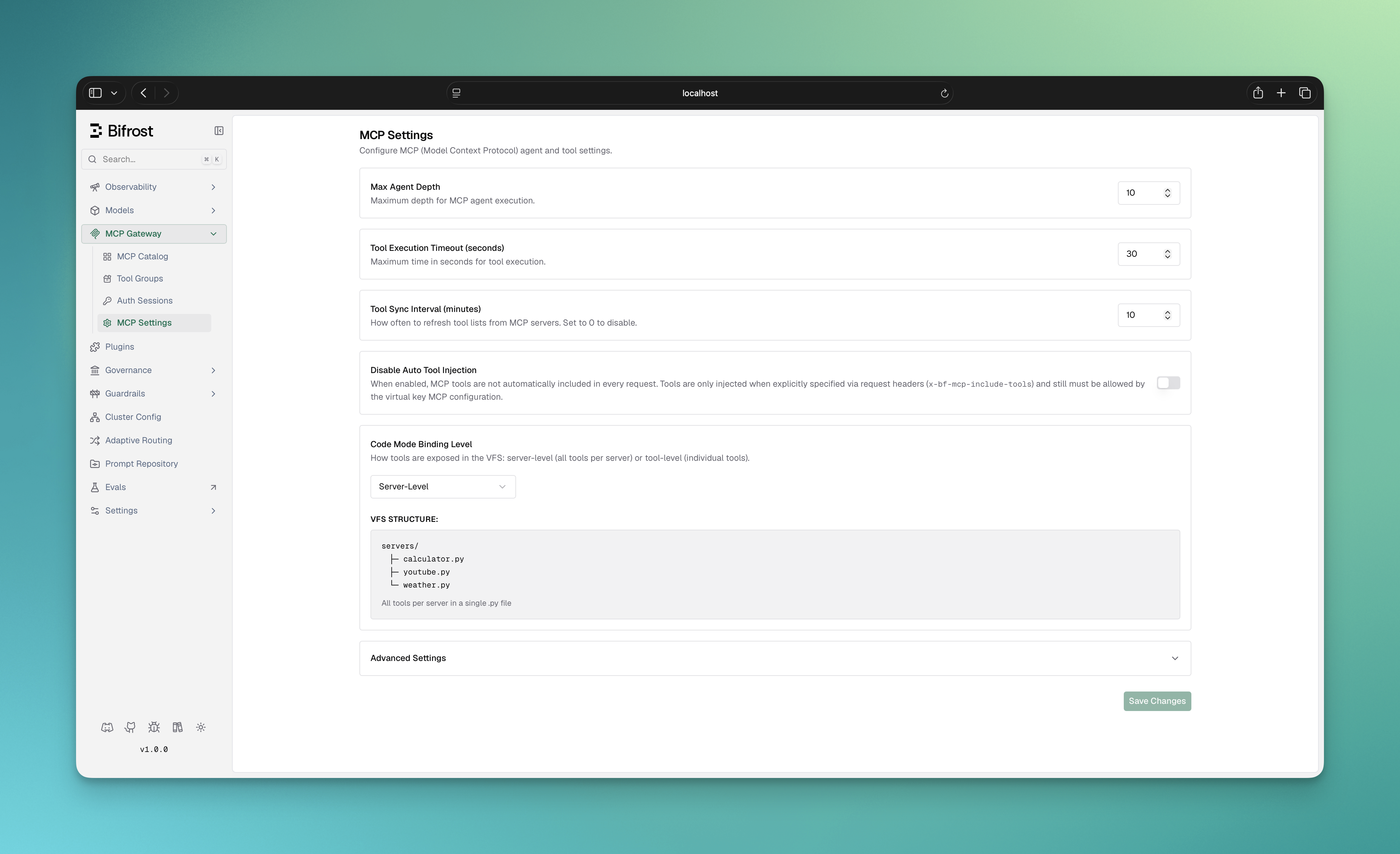 Edits apply immediately and are persisted to the running config.
The `/api/config` endpoint accepts the runtime client-config aliases (`mcp_tool_execution_timeout`, `mcp_agent_depth`, `mcp_code_mode_binding_level`, `mcp_disable_auto_tool_inject`). These are deprecated names that mirror the canonical `mcp.tool_manager_config.*` fields below — the runtime accepts both forms.
```bash theme={null}
curl -X PUT http://localhost:8080/api/config \
-H "Content-Type: application/json" \
-d '{
"client_config": {
"mcp_tool_execution_timeout": 120,
"mcp_agent_depth": 3,
"mcp_code_mode_binding_level": "server",
"mcp_disable_auto_tool_inject": true
}
}'
```
```json theme={null}
{
"mcp": {
"tool_manager_config": {
"tool_execution_timeout": "2m",
"max_agent_depth": 3,
"code_mode_binding_level": "server",
"disable_auto_tool_inject": true
},
"client_configs": [
{ "name": "filesystem", "connection_type": "stdio", ... }
]
}
}
```
Set `MCPConfig.ToolManagerConfig` before passing it to `bifrost.Init`:
```go theme={null}
mcpConfig := &schemas.MCPConfig{
ToolManagerConfig: &schemas.MCPToolManagerConfig{
ToolExecutionTimeout: schemas.Duration(2 * time.Minute),
MaxAgentDepth: 3,
CodeModeBindingLevel: schemas.CodeModeBindingLevelServer,
DisableAutoToolInject: true,
},
ClientConfigs: []*schemas.MCPClientConfig{
{ Name: "filesystem", ConnectionType: schemas.MCPConnectionTypeSTDIO, /* ... */ },
},
}
```
The matching `client.mcp_tool_execution_timeout`, `client.mcp_agent_depth`, `client.mcp_code_mode_binding_level`, and `client.mcp_disable_auto_tool_inject` fields are deprecated aliases kept for backward compatibility — prefer `mcp.tool_manager_config.*` in new `config.json` and Go SDK setups. The Web UI panel and `/api/config` continue to use the aliases because they edit the live `client_config` row directly.
***
## Environment Variables
Use environment variables for sensitive configuration values:
**Gateway (config.json):**
```json theme={null}
{
"name": "secure_api",
"connection_type": "http",
"connection_string": "env.SECURE_MCP_URL"
}
```
**Go SDK:**
```go theme={null}
{
Name: "secure_api",
ConnectionType: schemas.MCPConnectionTypeHTTP,
ConnectionString: bifrost.Ptr(os.Getenv("SECURE_MCP_URL")),
}
```
Environment variables are:
* Automatically resolved during client connection
* Redacted in API responses and UI for security
* Validated at startup to ensure all required variables are set
***
## Forwarding Request Headers to MCP Servers
Header Forwarding is available in **v1.5.0-prerelease1 and above**.
By default, Bifrost does not forward incoming request headers to MCP servers during tool execution. The `allowed_extra_headers` field lets you define a per-client allowlist of headers that callers may inject at request time and have forwarded to that MCP server when tools are executed.
This is separate from the static `headers` field used for authentication:
| Field | Purpose | When sent |
| ----------------------- | ------------------------------------------ | ------------------------------------------------------------------------ |
| `headers` | Static auth credentials (API keys, tokens) | Always, on every tool call |
| `allowed_extra_headers` | Dynamic per-request headers from callers | Only when the caller provides them, and only if they match the allowlist |
**Common use cases:**
* Forwarding a user's auth token to an MCP server that enforces per-user authorization
* Passing a tenant or org ID to a multi-tenant MCP server
* Propagating trace or correlation IDs for end-to-end observability
Values forwarded this way come from the **caller's** request, so the upstream server must treat them as untrusted input. Headers can also be injected server-side from a plugin: an identity header callers cannot spoof (for example, the signed-in user's email), or a dynamically computed value on a shared connection (for example, a short-lived service token). See [Recipe: injecting dynamic headers server-side](../plugins/writing-go-plugin#recipe-injecting-dynamic-headers-server-side-sup-v1-5-x-sup). Plugin-injected headers pass through the same per-client allowlist.
### How It Works
1. An incoming request carries one or more headers matching a client's `allowed_extra_headers` pattern
2. Bifrost captures those headers from the request (using the union of all clients' allowlists)
3. At tool execution time, each client **re-checks** the header against its own allowlist - so the same header can be forwarded to one MCP server but not another
Headers are matched case-insensitively. The only wildcard supported is a standalone `"*"` (allow all headers) - partial patterns like `x-tenant-*` are not supported. If `"*"` is used, it must be the only entry in the list.
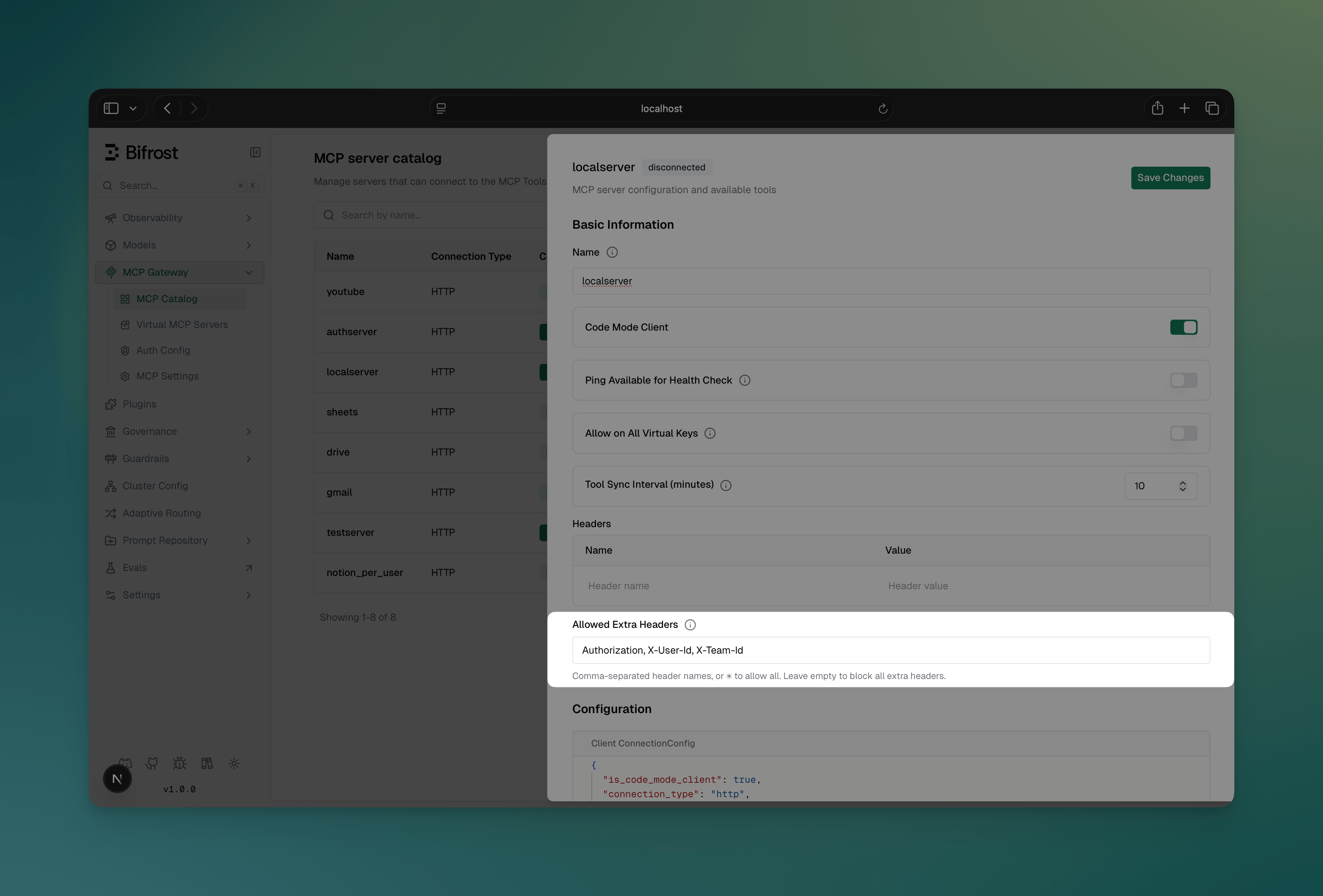
**Configure:** Navigate to **MCP Gateway**, open the configuration sheet for an HTTP or SSE client, and set the **Allowed Extra Headers** field:
Edits apply immediately and are persisted to the running config.
The `/api/config` endpoint accepts the runtime client-config aliases (`mcp_tool_execution_timeout`, `mcp_agent_depth`, `mcp_code_mode_binding_level`, `mcp_disable_auto_tool_inject`). These are deprecated names that mirror the canonical `mcp.tool_manager_config.*` fields below — the runtime accepts both forms.
```bash theme={null}
curl -X PUT http://localhost:8080/api/config \
-H "Content-Type: application/json" \
-d '{
"client_config": {
"mcp_tool_execution_timeout": 120,
"mcp_agent_depth": 3,
"mcp_code_mode_binding_level": "server",
"mcp_disable_auto_tool_inject": true
}
}'
```
```json theme={null}
{
"mcp": {
"tool_manager_config": {
"tool_execution_timeout": "2m",
"max_agent_depth": 3,
"code_mode_binding_level": "server",
"disable_auto_tool_inject": true
},
"client_configs": [
{ "name": "filesystem", "connection_type": "stdio", ... }
]
}
}
```
Set `MCPConfig.ToolManagerConfig` before passing it to `bifrost.Init`:
```go theme={null}
mcpConfig := &schemas.MCPConfig{
ToolManagerConfig: &schemas.MCPToolManagerConfig{
ToolExecutionTimeout: schemas.Duration(2 * time.Minute),
MaxAgentDepth: 3,
CodeModeBindingLevel: schemas.CodeModeBindingLevelServer,
DisableAutoToolInject: true,
},
ClientConfigs: []*schemas.MCPClientConfig{
{ Name: "filesystem", ConnectionType: schemas.MCPConnectionTypeSTDIO, /* ... */ },
},
}
```
The matching `client.mcp_tool_execution_timeout`, `client.mcp_agent_depth`, `client.mcp_code_mode_binding_level`, and `client.mcp_disable_auto_tool_inject` fields are deprecated aliases kept for backward compatibility — prefer `mcp.tool_manager_config.*` in new `config.json` and Go SDK setups. The Web UI panel and `/api/config` continue to use the aliases because they edit the live `client_config` row directly.
***
## Environment Variables
Use environment variables for sensitive configuration values:
**Gateway (config.json):**
```json theme={null}
{
"name": "secure_api",
"connection_type": "http",
"connection_string": "env.SECURE_MCP_URL"
}
```
**Go SDK:**
```go theme={null}
{
Name: "secure_api",
ConnectionType: schemas.MCPConnectionTypeHTTP,
ConnectionString: bifrost.Ptr(os.Getenv("SECURE_MCP_URL")),
}
```
Environment variables are:
* Automatically resolved during client connection
* Redacted in API responses and UI for security
* Validated at startup to ensure all required variables are set
***
## Forwarding Request Headers to MCP Servers
Header Forwarding is available in **v1.5.0-prerelease1 and above**.
By default, Bifrost does not forward incoming request headers to MCP servers during tool execution. The `allowed_extra_headers` field lets you define a per-client allowlist of headers that callers may inject at request time and have forwarded to that MCP server when tools are executed.
This is separate from the static `headers` field used for authentication:
| Field | Purpose | When sent |
| ----------------------- | ------------------------------------------ | ------------------------------------------------------------------------ |
| `headers` | Static auth credentials (API keys, tokens) | Always, on every tool call |
| `allowed_extra_headers` | Dynamic per-request headers from callers | Only when the caller provides them, and only if they match the allowlist |
**Common use cases:**
* Forwarding a user's auth token to an MCP server that enforces per-user authorization
* Passing a tenant or org ID to a multi-tenant MCP server
* Propagating trace or correlation IDs for end-to-end observability
Values forwarded this way come from the **caller's** request, so the upstream server must treat them as untrusted input. Headers can also be injected server-side from a plugin: an identity header callers cannot spoof (for example, the signed-in user's email), or a dynamically computed value on a shared connection (for example, a short-lived service token). See [Recipe: injecting dynamic headers server-side](../plugins/writing-go-plugin#recipe-injecting-dynamic-headers-server-side-sup-v1-5-x-sup). Plugin-injected headers pass through the same per-client allowlist.
### How It Works
1. An incoming request carries one or more headers matching a client's `allowed_extra_headers` pattern
2. Bifrost captures those headers from the request (using the union of all clients' allowlists)
3. At tool execution time, each client **re-checks** the header against its own allowlist - so the same header can be forwarded to one MCP server but not another
Headers are matched case-insensitively. The only wildcard supported is a standalone `"*"` (allow all headers) - partial patterns like `x-tenant-*` are not supported. If `"*"` is used, it must be the only entry in the list.
**Configure:** Navigate to **MCP Gateway**, open the configuration sheet for an HTTP or SSE client, and set the **Allowed Extra Headers** field:
 **Send headers:** Include the allowed headers in any inference request to the LLM gateway:
```bash theme={null}
curl -X POST http://localhost:8080/v1/chat/completions \
-H "Content-Type: application/json" \
-H "x-user-token: eyJhbGci..." \
-H "x-tenant-id: acme-corp" \
-d '{
"model": "openai/gpt-4o",
"messages": [{"role": "user", "content": "Look up my account details"}]
}'
```
**Configure:** Include `allowed_extra_headers` when creating or updating a client:
```bash theme={null}
curl -X POST http://localhost:8080/api/mcp/client \
-H "Content-Type: application/json" \
-d '{
"name": "my_api",
"connection_type": "http",
"connection_string": "https://mcp.example.com/mcp",
"auth_type": "headers",
"headers": {
"Authorization": "Bearer service-token"
},
"allowed_extra_headers": ["x-user-token", "x-tenant-id", "x-request-id"],
"tools_to_execute": ["*"]
}'
```
**Send headers:** Include the allowed headers in any inference request:
```bash theme={null}
curl -X POST http://localhost:8080/v1/chat/completions \
-H "Content-Type: application/json" \
-H "x-user-token: eyJhbGci..." \
-H "x-tenant-id: acme-corp" \
-d '{
"model": "openai/gpt-4o",
"messages": [{"role": "user", "content": "Look up my account details"}]
}'
```
**Configure:**
```json theme={null}
{
"mcp": {
"client_configs": [
{
"name": "my_api",
"connection_type": "http",
"connection_string": "https://mcp.example.com/mcp",
"auth_type": "headers",
"headers": {
"Authorization": "Bearer service-token"
},
"allowed_extra_headers": ["x-user-token", "x-tenant-id", "x-request-id"],
"tools_to_execute": ["*"]
}
]
}
}
```
**Send headers:** Include the allowed headers in any inference request:
```bash theme={null}
curl -X POST http://localhost:8080/v1/chat/completions \
-H "Content-Type: application/json" \
-H "x-user-token: eyJhbGci..." \
-H "x-tenant-id: acme-corp" \
-d '{
"model": "openai/gpt-4o",
"messages": [{"role": "user", "content": "Look up my account details"}]
}'
```
**Configure** the client as above (Web UI, Management API, or config.json).
**Send headers:** When an external MCP client (e.g., Claude Desktop, Cursor) connects to Bifrost's `/mcp` endpoint, include the allowed headers in that HTTP request. Bifrost forwards them during any tool call made within that session:
```json theme={null}
{
"mcpServers": {
"bifrost": {
"url": "http://localhost:8080/mcp",
"headers": {
"x-user-token": "eyJhbGci...",
"x-tenant-id": "acme-corp"
}
}
}
}
```
Header support in MCP client config varies by client. The above JSON format applies to clients that support custom headers (e.g., Claude Desktop, Cursor). Check your MCP client's documentation for the exact configuration syntax.
**Configure:**
```go theme={null}
schemas.MCPClientConfig{
Name: "my_api",
ConnectionType: schemas.MCPConnectionTypeHTTP,
ConnectionString: bifrost.Ptr("https://mcp.example.com/mcp"),
AuthType: schemas.MCPAuthTypeHeaders,
Headers: map[string]schemas.EnvVar{
"Authorization": {Value: "Bearer service-token"},
},
AllowedExtraHeaders: schemas.WhiteList{"x-user-token", "x-tenant-id", "x-request-id"},
ToolsToExecute: []string{"*"},
}
```
**Send headers:** Set `BifrostContextKeyMCPExtraHeaders` on the context before calling `ChatCompletionRequest` or `ExecuteChatMCPTool`:
```go theme={null}
bifrostCtx := schemas.NewBifrostContext(context.Background(), schemas.NoDeadline)
bifrostCtx.SetValue(schemas.BifrostContextKeyMCPExtraHeaders, map[string][]string{
"x-user-token": {"eyJhbGci..."},
"x-tenant-id": {"acme-corp"},
})
response, err := client.ChatCompletionRequest(bifrostCtx, request)
```
***
## Client State Management
### Connection States
| State | Description |
| ---------------------- | ----------------------------------------------------------------------------------------------------------------------------------------------------------------------------------------------------------------------------------------------------------------------------- |
| `healthy` | Client is active and tools are available |
| `unstable` | The last periodic health check failed transiently — self-heals, tool calls still attempted normally |
| `needs_reauth` | The connection credential died and needs an admin to reauthorize (server-level), or the retained admin discovery credential needs repair (per-user) |
| `pending_verification` | Declared (typically via config.json) with an auth type that needs a one-time admin step — complete it via the UI's Authorize/Verify button, `POST /api/mcp/client/{id}/initiate-verification` (OAuth types), or `POST /api/mcp/client/{id}/verify-headers` (per-user headers) |
| `disabled` | An admin intentionally turned the client off |
| `error` | A data-consistency fallback — the client is registered but missing from the runtime manager |
| `degraded` | Cluster-only: instances currently disagree on this client's state |
See [Connections, States & Lifecycles](./connections) for the full picture — connection mode, self-healing behavior, and per-auth-type lifecycles.
### Managing Clients at Runtime
**Reconnect a client:**
```bash theme={null}
curl -X POST http://localhost:8080/api/mcp/client/{id}/reconnect
```
Reconnect returns `400` for any per-call client — a shared client running per-call ([`needs_session_stickiness`](./connections#two-independent-axes) false/omitted) as well as any per-user auth type — since none of them hold a shared upstream connection to re-establish. Also `400` for clients in `pending_verification` — complete the admin verification instead.
**Edit client configuration:**
```bash theme={null}
curl -X PUT http://localhost:8080/api/mcp/client/{id} \
-H "Content-Type: application/json" \
-d '{
"name": "filesystem",
"connection_type": "stdio",
"stdio_config": {
"command": "npx",
"args": ["-y", "@anthropic/mcp-filesystem"]
},
"tools_to_execute": ["read_file", "list_directory"]
}'
```
**Remove a client:**
```bash theme={null}
curl -X DELETE http://localhost:8080/api/mcp/client/{id}
```
```go theme={null}
// Get all connected clients
clients, err := client.GetMCPClients()
for _, mcpClient := range clients {
fmt.Printf("Client: %s, State: %s, Tools: %d\n",
mcpClient.Config.Name,
mcpClient.State,
len(mcpClient.Tools))
}
// Reconnect a disconnected client
err = client.ReconnectMCPClient("filesystem")
// Add new client at runtime
err = client.AddMCPClient(schemas.MCPClientConfig{
Name: "new_client",
ConnectionType: schemas.MCPConnectionTypeHTTP,
ConnectionString: bifrost.Ptr("http://localhost:3002/mcp"),
ToolsToExecute: []string{"*"},
})
// Remove a client
err = client.RemoveMCPClient("old_client")
// Edit client tools
err = client.EditMCPClientTools("filesystem", []string{"read_file", "list_directory"})
```
***
## Health Monitoring
Bifrost automatically monitors MCP client health with periodic checks every 10 seconds by default.
### Health Check Methods
By default, Bifrost uses the lightweight **ping method** for health checks. However, you can configure the health check method based on your MCP server's capabilities:
| Method | When to Use | Overhead | Fallback |
| ------------------ | ------------------------------------------------------- | -------- | ----------------------- |
| **Ping** (default) | Server supports MCP ping protocol | Minimal | Best for most servers |
| **ListTools** | Server doesn't support ping, or you need heavier checks | Higher | More resource-intensive |
### Configuring Health Check Method
You can toggle the `is_ping_available` setting for each client:
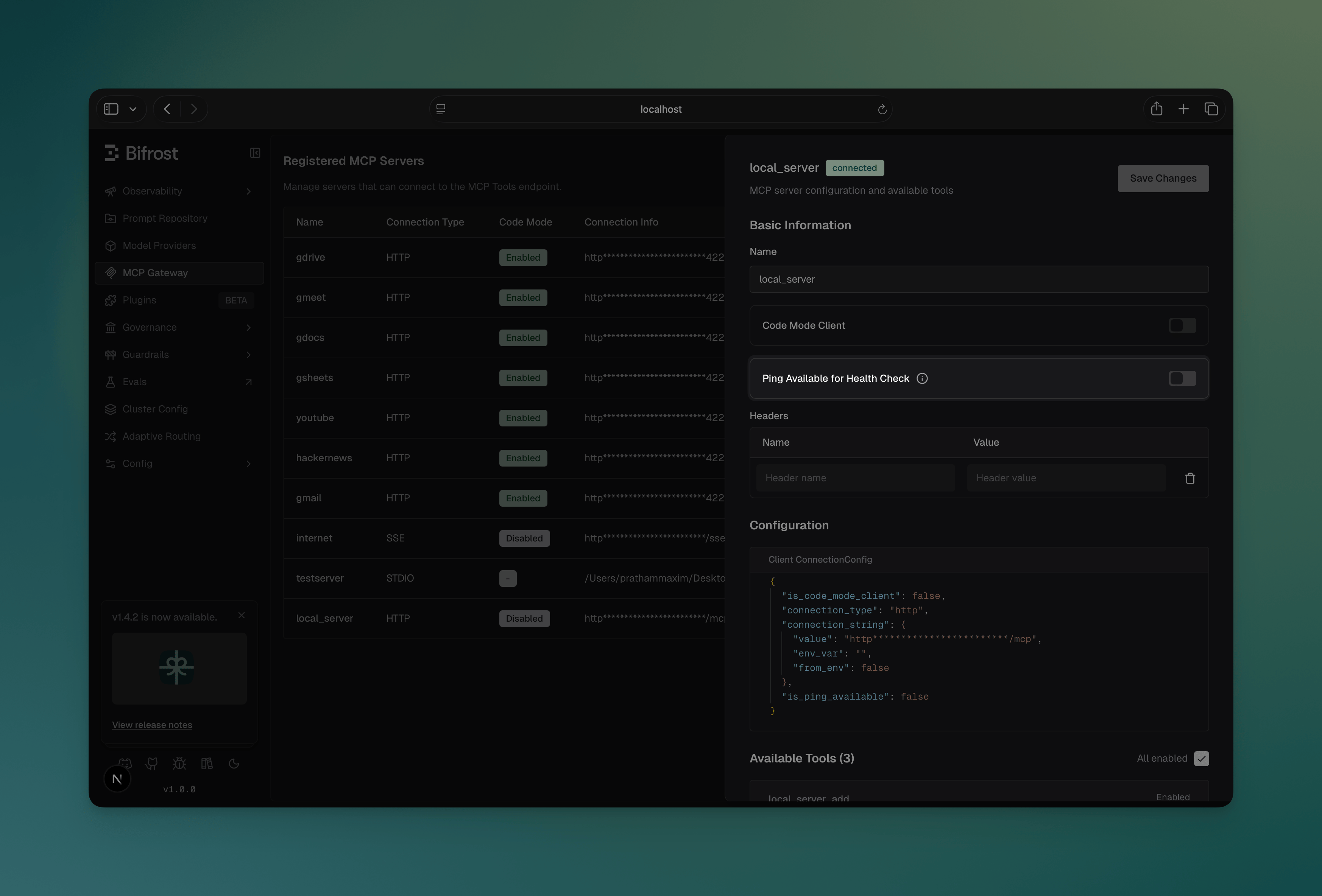
#### Via Web UI
1. Navigate to **MCP Gateway** and select a server
2. In the configuration panel, toggle **"Ping Available for Health Check"**
3. Enable: Uses lightweight ping for health checks
4. Disable: Uses listTools method for health checks instead
**Send headers:** Include the allowed headers in any inference request to the LLM gateway:
```bash theme={null}
curl -X POST http://localhost:8080/v1/chat/completions \
-H "Content-Type: application/json" \
-H "x-user-token: eyJhbGci..." \
-H "x-tenant-id: acme-corp" \
-d '{
"model": "openai/gpt-4o",
"messages": [{"role": "user", "content": "Look up my account details"}]
}'
```
**Configure:** Include `allowed_extra_headers` when creating or updating a client:
```bash theme={null}
curl -X POST http://localhost:8080/api/mcp/client \
-H "Content-Type: application/json" \
-d '{
"name": "my_api",
"connection_type": "http",
"connection_string": "https://mcp.example.com/mcp",
"auth_type": "headers",
"headers": {
"Authorization": "Bearer service-token"
},
"allowed_extra_headers": ["x-user-token", "x-tenant-id", "x-request-id"],
"tools_to_execute": ["*"]
}'
```
**Send headers:** Include the allowed headers in any inference request:
```bash theme={null}
curl -X POST http://localhost:8080/v1/chat/completions \
-H "Content-Type: application/json" \
-H "x-user-token: eyJhbGci..." \
-H "x-tenant-id: acme-corp" \
-d '{
"model": "openai/gpt-4o",
"messages": [{"role": "user", "content": "Look up my account details"}]
}'
```
**Configure:**
```json theme={null}
{
"mcp": {
"client_configs": [
{
"name": "my_api",
"connection_type": "http",
"connection_string": "https://mcp.example.com/mcp",
"auth_type": "headers",
"headers": {
"Authorization": "Bearer service-token"
},
"allowed_extra_headers": ["x-user-token", "x-tenant-id", "x-request-id"],
"tools_to_execute": ["*"]
}
]
}
}
```
**Send headers:** Include the allowed headers in any inference request:
```bash theme={null}
curl -X POST http://localhost:8080/v1/chat/completions \
-H "Content-Type: application/json" \
-H "x-user-token: eyJhbGci..." \
-H "x-tenant-id: acme-corp" \
-d '{
"model": "openai/gpt-4o",
"messages": [{"role": "user", "content": "Look up my account details"}]
}'
```
**Configure** the client as above (Web UI, Management API, or config.json).
**Send headers:** When an external MCP client (e.g., Claude Desktop, Cursor) connects to Bifrost's `/mcp` endpoint, include the allowed headers in that HTTP request. Bifrost forwards them during any tool call made within that session:
```json theme={null}
{
"mcpServers": {
"bifrost": {
"url": "http://localhost:8080/mcp",
"headers": {
"x-user-token": "eyJhbGci...",
"x-tenant-id": "acme-corp"
}
}
}
}
```
Header support in MCP client config varies by client. The above JSON format applies to clients that support custom headers (e.g., Claude Desktop, Cursor). Check your MCP client's documentation for the exact configuration syntax.
**Configure:**
```go theme={null}
schemas.MCPClientConfig{
Name: "my_api",
ConnectionType: schemas.MCPConnectionTypeHTTP,
ConnectionString: bifrost.Ptr("https://mcp.example.com/mcp"),
AuthType: schemas.MCPAuthTypeHeaders,
Headers: map[string]schemas.EnvVar{
"Authorization": {Value: "Bearer service-token"},
},
AllowedExtraHeaders: schemas.WhiteList{"x-user-token", "x-tenant-id", "x-request-id"},
ToolsToExecute: []string{"*"},
}
```
**Send headers:** Set `BifrostContextKeyMCPExtraHeaders` on the context before calling `ChatCompletionRequest` or `ExecuteChatMCPTool`:
```go theme={null}
bifrostCtx := schemas.NewBifrostContext(context.Background(), schemas.NoDeadline)
bifrostCtx.SetValue(schemas.BifrostContextKeyMCPExtraHeaders, map[string][]string{
"x-user-token": {"eyJhbGci..."},
"x-tenant-id": {"acme-corp"},
})
response, err := client.ChatCompletionRequest(bifrostCtx, request)
```
***
## Client State Management
### Connection States
| State | Description |
| ---------------------- | ----------------------------------------------------------------------------------------------------------------------------------------------------------------------------------------------------------------------------------------------------------------------------- |
| `healthy` | Client is active and tools are available |
| `unstable` | The last periodic health check failed transiently — self-heals, tool calls still attempted normally |
| `needs_reauth` | The connection credential died and needs an admin to reauthorize (server-level), or the retained admin discovery credential needs repair (per-user) |
| `pending_verification` | Declared (typically via config.json) with an auth type that needs a one-time admin step — complete it via the UI's Authorize/Verify button, `POST /api/mcp/client/{id}/initiate-verification` (OAuth types), or `POST /api/mcp/client/{id}/verify-headers` (per-user headers) |
| `disabled` | An admin intentionally turned the client off |
| `error` | A data-consistency fallback — the client is registered but missing from the runtime manager |
| `degraded` | Cluster-only: instances currently disagree on this client's state |
See [Connections, States & Lifecycles](./connections) for the full picture — connection mode, self-healing behavior, and per-auth-type lifecycles.
### Managing Clients at Runtime
**Reconnect a client:**
```bash theme={null}
curl -X POST http://localhost:8080/api/mcp/client/{id}/reconnect
```
Reconnect returns `400` for any per-call client — a shared client running per-call ([`needs_session_stickiness`](./connections#two-independent-axes) false/omitted) as well as any per-user auth type — since none of them hold a shared upstream connection to re-establish. Also `400` for clients in `pending_verification` — complete the admin verification instead.
**Edit client configuration:**
```bash theme={null}
curl -X PUT http://localhost:8080/api/mcp/client/{id} \
-H "Content-Type: application/json" \
-d '{
"name": "filesystem",
"connection_type": "stdio",
"stdio_config": {
"command": "npx",
"args": ["-y", "@anthropic/mcp-filesystem"]
},
"tools_to_execute": ["read_file", "list_directory"]
}'
```
**Remove a client:**
```bash theme={null}
curl -X DELETE http://localhost:8080/api/mcp/client/{id}
```
```go theme={null}
// Get all connected clients
clients, err := client.GetMCPClients()
for _, mcpClient := range clients {
fmt.Printf("Client: %s, State: %s, Tools: %d\n",
mcpClient.Config.Name,
mcpClient.State,
len(mcpClient.Tools))
}
// Reconnect a disconnected client
err = client.ReconnectMCPClient("filesystem")
// Add new client at runtime
err = client.AddMCPClient(schemas.MCPClientConfig{
Name: "new_client",
ConnectionType: schemas.MCPConnectionTypeHTTP,
ConnectionString: bifrost.Ptr("http://localhost:3002/mcp"),
ToolsToExecute: []string{"*"},
})
// Remove a client
err = client.RemoveMCPClient("old_client")
// Edit client tools
err = client.EditMCPClientTools("filesystem", []string{"read_file", "list_directory"})
```
***
## Health Monitoring
Bifrost automatically monitors MCP client health with periodic checks every 10 seconds by default.
### Health Check Methods
By default, Bifrost uses the lightweight **ping method** for health checks. However, you can configure the health check method based on your MCP server's capabilities:
| Method | When to Use | Overhead | Fallback |
| ------------------ | ------------------------------------------------------- | -------- | ----------------------- |
| **Ping** (default) | Server supports MCP ping protocol | Minimal | Best for most servers |
| **ListTools** | Server doesn't support ping, or you need heavier checks | Higher | More resource-intensive |
### Configuring Health Check Method
You can toggle the `is_ping_available` setting for each client:
#### Via Web UI
1. Navigate to **MCP Gateway** and select a server
2. In the configuration panel, toggle **"Ping Available for Health Check"**
3. Enable: Uses lightweight ping for health checks
4. Disable: Uses listTools method for health checks instead
 #### Via API
```bash theme={null}
curl -X PUT http://localhost:8080/api/mcp/client/{id} \
-H "Content-Type: application/json" \
-d '{
"name": "my_server",
"is_ping_available": false
}'
```
#### Via config.json
```json theme={null}
{
"mcp": {
"client_configs": [
{
"name": "filesystem",
"connection_type": "stdio",
"is_ping_available": true,
"stdio_config": {
"command": "npx",
"args": ["-y", "@anthropic/mcp-filesystem"]
}
}
]
}
}
```
#### Via Go SDK
```go theme={null}
err := client.EditMCPClient(context.Background(), schemas.MCPClientConfig{
ID: "filesystem",
Name: "filesystem",
IsPingAvailable: false, // Use listTools instead of ping
ToolsToExecute: []string{"*"},
})
```
### Health Check Behavior
When a client's periodic health check fails:
1. State changes to `unstable` — purely informational, tool calls are still attempted normally against it
2. You can also reconnect manually via API or UI, though `unstable` self-heals on its own once the next check succeeds
**Note:** Changing `is_ping_available` takes effect immediately without requiring a client reconnection.
***
## Connection Resilience and Retry Logic
Bifrost automatically implements **exponential backoff retry logic** to handle transient network failures and temporary service unavailability. This ensures that brief connection issues don't immediately cause tool unavailability.
**Important:** Bifrost only retries on transient errors (network failures, timeouts, temporary service unavailability). Permanent errors like authentication failures, configuration errors, and missing commands fail immediately without retry.
### Automatic Retry Strategy
Bifrost retries failed operations using the following strategy, as implemented by `ExecuteWithRetry` and `DefaultRetryConfig` in the MCP layer:
| Parameter | Value | Description |
| --------------------------------------------------------- | ---------- | ---------------------------------------------------- |
| **Max Retries** (`DefaultRetryConfig.MaxRetries`) | 5 | Retries after the initial attempt (6 attempts total) |
| **Initial Backoff** (`DefaultRetryConfig.InitialBackoff`) | 1 second | Starting backoff duration before doubling |
| **Max Backoff** (`DefaultRetryConfig.MaxBackoff`) | 30 seconds | Maximum wait time between retries |
| **Backoff Multiplier** | 2x | Exponential growth between attempts |
**Backoff Progression** (matches `ExecuteWithRetry` with `DefaultRetryConfig`):
* Attempt 1: Initial attempt (no wait)
* Attempt 2: Wait 1s, then retry (and double backoff to 2s)
* Attempt 3: Wait 2s, then retry (and double backoff to 4s)
* Attempt 4: Wait 4s, then retry (and double backoff to 8s)
* Attempt 5: Wait 8s, then retry (and double backoff to 16s)
* Attempt 6: Wait 16s, then retry (backoff capped at 30s max)
### Error Classification
Bifrost intelligently classifies errors as either **transient** (retryable) or **permanent** (fail immediately):
**Transient Errors (Retried):**
* Connection timeouts or refused connections
* Network unreachable errors
* DNS resolution failures
* HTTP 5xx errors (500, 502, 503, 504)
* HTTP 429 (Too Many Requests)
* I/O errors and broken pipes
* Temporary service unavailability
**Permanent Errors (Fail Immediately - No Retry):**
* **Context deadline exceeded or cancelled** - Retrying won't help if time limit is reached
* Authentication failures (401, 403)
* Authorization denied
* Configuration errors (invalid auth, invalid config)
* File or command not found (e.g., "command not found: npx")
* Bad request errors (400, 405, 422)
* Command execution permission denied
* Invalid credentials
### What Operations Are Retried
Bifrost applies retry logic to these critical operations:
1. **Connection Creation** - Establishing initial connection to the MCP server (with error classification)
2. **Transport Start** - Starting the transport layer (STDIO, HTTP, SSE)
3. **Client Initialization** - Initializing the MCP client protocol
4. **Tool Discovery** - Retrieving available tools from the server
5. **Automatic Reconnection** - When health checks detect disconnection
### Reconnection on Health Check Failure
When a client reaches 5 consecutive health check failures:
1. Client state changes to `unstable`
2. Bifrost automatically attempts reconnection **in the background**
3. Reconnection uses the same exponential backoff retry logic
4. Once reconnected, health checks resume normal operation and state returns to `healthy`
This automatic reconnection happens asynchronously and doesn't block other operations.
### Manual Reconnection
You can also trigger manual reconnection at any time:
```bash theme={null}
curl -X POST http://localhost:8080/api/mcp/client/{id}/reconnect
```
Manual reconnection also uses the retry logic for robustness. Not applicable (`400`) to any per-call client — a shared client running per-call, or any per-user auth type — each call resolves its own connection/credential per request, with nothing shared to reconnect. Also not applicable to clients in `pending_verification`, which need the one-time admin verification instead.
```go theme={null}
// Reconnect with automatic retry logic
err := client.ReconnectMCPClient("filesystem")
if err != nil {
log.Printf("Reconnection failed after retries: %v", err)
}
```
### Benefits
* **Handles transient failures**: Brief network hiccups won't cause tool unavailability
* **Prevents server overload**: Exponential backoff prevents hammering servers
* **Automatic recovery**: Disconnected clients reconnect automatically
* **Production-ready**: No manual intervention needed for temporary issues
* **Transparent logging**: Detailed retry attempts logged for debugging
***
## Disabling and Re-enabling Clients
You can temporarily disable an MCP client without removing it. When disabled, Bifrost shuts down the client's connection, health monitor, and tool syncer. The client entry is preserved and its tools are invisible to inference requests until it is re-enabled.
Use the **Enabled** toggle in the MCP Server Catalog table to disable or re-enable a client with a single click. The toggle shows a loading spinner while the API call is in flight and automatically reflects the updated state.
#### Via API
```bash theme={null}
curl -X PUT http://localhost:8080/api/mcp/client/{id} \
-H "Content-Type: application/json" \
-d '{
"name": "my_server",
"is_ping_available": false
}'
```
#### Via config.json
```json theme={null}
{
"mcp": {
"client_configs": [
{
"name": "filesystem",
"connection_type": "stdio",
"is_ping_available": true,
"stdio_config": {
"command": "npx",
"args": ["-y", "@anthropic/mcp-filesystem"]
}
}
]
}
}
```
#### Via Go SDK
```go theme={null}
err := client.EditMCPClient(context.Background(), schemas.MCPClientConfig{
ID: "filesystem",
Name: "filesystem",
IsPingAvailable: false, // Use listTools instead of ping
ToolsToExecute: []string{"*"},
})
```
### Health Check Behavior
When a client's periodic health check fails:
1. State changes to `unstable` — purely informational, tool calls are still attempted normally against it
2. You can also reconnect manually via API or UI, though `unstable` self-heals on its own once the next check succeeds
**Note:** Changing `is_ping_available` takes effect immediately without requiring a client reconnection.
***
## Connection Resilience and Retry Logic
Bifrost automatically implements **exponential backoff retry logic** to handle transient network failures and temporary service unavailability. This ensures that brief connection issues don't immediately cause tool unavailability.
**Important:** Bifrost only retries on transient errors (network failures, timeouts, temporary service unavailability). Permanent errors like authentication failures, configuration errors, and missing commands fail immediately without retry.
### Automatic Retry Strategy
Bifrost retries failed operations using the following strategy, as implemented by `ExecuteWithRetry` and `DefaultRetryConfig` in the MCP layer:
| Parameter | Value | Description |
| --------------------------------------------------------- | ---------- | ---------------------------------------------------- |
| **Max Retries** (`DefaultRetryConfig.MaxRetries`) | 5 | Retries after the initial attempt (6 attempts total) |
| **Initial Backoff** (`DefaultRetryConfig.InitialBackoff`) | 1 second | Starting backoff duration before doubling |
| **Max Backoff** (`DefaultRetryConfig.MaxBackoff`) | 30 seconds | Maximum wait time between retries |
| **Backoff Multiplier** | 2x | Exponential growth between attempts |
**Backoff Progression** (matches `ExecuteWithRetry` with `DefaultRetryConfig`):
* Attempt 1: Initial attempt (no wait)
* Attempt 2: Wait 1s, then retry (and double backoff to 2s)
* Attempt 3: Wait 2s, then retry (and double backoff to 4s)
* Attempt 4: Wait 4s, then retry (and double backoff to 8s)
* Attempt 5: Wait 8s, then retry (and double backoff to 16s)
* Attempt 6: Wait 16s, then retry (backoff capped at 30s max)
### Error Classification
Bifrost intelligently classifies errors as either **transient** (retryable) or **permanent** (fail immediately):
**Transient Errors (Retried):**
* Connection timeouts or refused connections
* Network unreachable errors
* DNS resolution failures
* HTTP 5xx errors (500, 502, 503, 504)
* HTTP 429 (Too Many Requests)
* I/O errors and broken pipes
* Temporary service unavailability
**Permanent Errors (Fail Immediately - No Retry):**
* **Context deadline exceeded or cancelled** - Retrying won't help if time limit is reached
* Authentication failures (401, 403)
* Authorization denied
* Configuration errors (invalid auth, invalid config)
* File or command not found (e.g., "command not found: npx")
* Bad request errors (400, 405, 422)
* Command execution permission denied
* Invalid credentials
### What Operations Are Retried
Bifrost applies retry logic to these critical operations:
1. **Connection Creation** - Establishing initial connection to the MCP server (with error classification)
2. **Transport Start** - Starting the transport layer (STDIO, HTTP, SSE)
3. **Client Initialization** - Initializing the MCP client protocol
4. **Tool Discovery** - Retrieving available tools from the server
5. **Automatic Reconnection** - When health checks detect disconnection
### Reconnection on Health Check Failure
When a client reaches 5 consecutive health check failures:
1. Client state changes to `unstable`
2. Bifrost automatically attempts reconnection **in the background**
3. Reconnection uses the same exponential backoff retry logic
4. Once reconnected, health checks resume normal operation and state returns to `healthy`
This automatic reconnection happens asynchronously and doesn't block other operations.
### Manual Reconnection
You can also trigger manual reconnection at any time:
```bash theme={null}
curl -X POST http://localhost:8080/api/mcp/client/{id}/reconnect
```
Manual reconnection also uses the retry logic for robustness. Not applicable (`400`) to any per-call client — a shared client running per-call, or any per-user auth type — each call resolves its own connection/credential per request, with nothing shared to reconnect. Also not applicable to clients in `pending_verification`, which need the one-time admin verification instead.
```go theme={null}
// Reconnect with automatic retry logic
err := client.ReconnectMCPClient("filesystem")
if err != nil {
log.Printf("Reconnection failed after retries: %v", err)
}
```
### Benefits
* **Handles transient failures**: Brief network hiccups won't cause tool unavailability
* **Prevents server overload**: Exponential backoff prevents hammering servers
* **Automatic recovery**: Disconnected clients reconnect automatically
* **Production-ready**: No manual intervention needed for temporary issues
* **Transparent logging**: Detailed retry attempts logged for debugging
***
## Disabling and Re-enabling Clients
You can temporarily disable an MCP client without removing it. When disabled, Bifrost shuts down the client's connection, health monitor, and tool syncer. The client entry is preserved and its tools are invisible to inference requests until it is re-enabled.
Use the **Enabled** toggle in the MCP Server Catalog table to disable or re-enable a client with a single click. The toggle shows a loading spinner while the API call is in flight and automatically reflects the updated state.
 ```bash theme={null}
# Disable a client
curl -X PUT http://localhost:8080/api/mcp/client/{id} \
-H "Content-Type: application/json" \
-d '{"disabled": true}'
# Re-enable a client (reconnects automatically)
curl -X PUT http://localhost:8080/api/mcp/client/{id} \
-H "Content-Type: application/json" \
-d '{"disabled": false}'
```
The `disabled` field is a runtime API state and **cannot** be set in `config.json`. Clients defined in `config.json` always start enabled. Use the Web UI or Gateway API to disable a client after it has been created.
The `disabled` state persists across restarts — a disabled client is loaded into memory on boot but its connection is not established until it is explicitly re-enabled. Config changes (name, tools, headers) sent in the same PUT request as a `disabled` change are applied before the connection is shut down or re-established.
***
## Naming Conventions
MCP client names have specific requirements:
* Must contain only ASCII characters
* Cannot contain hyphens (`-`) or spaces
* Cannot start with a number
* Must be unique across all clients
**Valid names:** `filesystem`, `web_search`, `myAPI`, `tool123`
**Invalid names:** `my-tools`, `web search`, `123tools`, `datos-api`
***
## Next Steps
Learn how to execute tools from connected MCP servers
Enable autonomous tool execution with auto-approval
```bash theme={null}
# Disable a client
curl -X PUT http://localhost:8080/api/mcp/client/{id} \
-H "Content-Type: application/json" \
-d '{"disabled": true}'
# Re-enable a client (reconnects automatically)
curl -X PUT http://localhost:8080/api/mcp/client/{id} \
-H "Content-Type: application/json" \
-d '{"disabled": false}'
```
The `disabled` field is a runtime API state and **cannot** be set in `config.json`. Clients defined in `config.json` always start enabled. Use the Web UI or Gateway API to disable a client after it has been created.
The `disabled` state persists across restarts — a disabled client is loaded into memory on boot but its connection is not established until it is explicitly re-enabled. Config changes (name, tools, headers) sent in the same PUT request as a `disabled` change are applied before the connection is shut down or re-established.
***
## Naming Conventions
MCP client names have specific requirements:
* Must contain only ASCII characters
* Cannot contain hyphens (`-`) or spaces
* Cannot start with a number
* Must be unique across all clients
**Valid names:** `filesystem`, `web_search`, `myAPI`, `tool123`
**Invalid names:** `my-tools`, `web search`, `123tools`, `datos-api`
***
## Next Steps
Learn how to execute tools from connected MCP servers
Enable autonomous tool execution with auto-approval