> ## Documentation Index
> Fetch the complete documentation index at: https://bifrost-dev.mintlify.site/llms.txt
> Use this file to discover all available pages before exploring further.
# Data Access Control (DAC)
> Decide which users, teams, business units, customers, keys, logs, and dashboards each person can see, based on their role and where they sit in your organization.
## Overview
Data Access Control (DAC) decides **which data** each person can see and act on in Bifrost Enterprise. It works together with role-based access control:
* **[RBAC](/enterprise/rbac)** decides **what a person can do**: view logs, create virtual keys, edit teams.
* **DAC** decides **which records** those actions apply to: only their own, their team's, their business unit's, their customer's, or everything.
A team lead with permission to view logs sees their team's requests. An account manager sees everything under their customer. An admin sees the whole workspace.
**Key benefits:**
* **Least-privilege visibility** - People see the data for the part of the organization they work in, and nothing else.
* **Follows your org chart** - Visibility comes from team and business unit membership, so it stays right as people move, including when membership is synced from your identity provider.
* **Covers logs and dashboards** - Request logs, MCP logs, and analytics are scoped the same way as keys and users.
* **Inference-aware** - Inference requests authenticated with a virtual key are scoped to the virtual key's owner, so per-key calls behave consistently with dashboard sessions.
DAC is set on the **role**, not on individual users. Everyone holding a role gets the same scope, expanded over their own teams, business
units, and customers.
***
## The scopes
Every role has a data access scope:
| Scope | Shown in the dashboard as | Who sees what |
| - | - | - |
| **Own data** | Show own data only | Only the person's own data: their keys, their requests, their profile. |
| **Team data** | Show team data | Their own data, plus everything belonging to the **teams** they are on. |
| **Business unit data** | Show business unit data | Their own data, plus everything belonging to the **business units** they are in. |
| **Customer data** | Show customer data | Their own data, plus everything under the **customers** they reach through their teams and business units: every team and business unit of those customers, and all their members. |
| **All data** | Show all data | Everything in the workspace. |
**Team data, business unit data, and customer data are separate scopes, not steps on a ladder.** Business unit data does not include the person's team data, and customer data only includes teams and business units that belong to a customer. Pick the scope that matches how the role works.
A person in several teams, business units, or customers sees all of them combined.
### Per-resource overrides
A role can set a different scope for individual kinds of data. For example, a support role can be **Team data** by default but **All data** for prompts, so everyone shares one prompt library while keys and logs stay team-only.
***
## How a person's scope is worked out
1. **Their role** sets the scope, and any override for the kind of data being viewed.
2. **Their memberships** decide what the scope covers:
* **Teams** - the teams they are a member of.
* **Business units** - the business units they are a member of.
* **Customers** - the customers linked to those teams and business units. Users are never members of a customer directly.
3. **Changes apply quickly.** When someone joins or leaves a team, or their role changes, their visibility updates across the cluster within moments, and in at most a few minutes.
There are no team "managers" or business unit "owners" with extra visibility. Everyone with the same role and the same memberships sees the same data.
***
## What each scope can see
The table below describes what a person sees on each page.
| Data | Own data | Team data | Business unit data | Customer data |
| - | - | - | - | - |
| **Users** | Themselves | + their teammates | + people in their business units | + every member of every team and business unit under their customers |
| **Teams** | Teams they are on or created | Same | Same | + every team under their customers |
| **Business units** | Business units they are in or created | Same | Same | + every business unit under their customers |
| **Customers** | Customers of their teams and keys, and customers they created | Same | + customers of their business units | + every customer they reach |
| **Virtual keys** | Keys assigned to them or that they created | + keys owned by their teams, and keys of their teammates | + keys owned by their business units, and keys of business unit members | + every key owned by a team, business unit, or customer under their customers, and members' keys |
| **Request logs and MCP logs** | Requests they made or made with their keys | + requests by members, and requests made with team-owned keys | + requests by members, and requests attributed to their business units | + requests attributed to any team, business unit, or customer under their customers |
| **Dashboards and analytics** | Built only from the requests they can see | Same | Same | Same |
| **Prompts** | Prompts they wrote | + prompts by teammates and prompts of their teams | + prompts by business unit members | + prompts by members and prompts of teams under their customers |
| **Routing rules** | Global rules, rules for themselves, and rules on keys they can see | + rules for their teams | Same as own data (there are no business unit rules) | + rules for teams and customers under their customers |
| **Audit logs** | Changes they made | + changes made by members | Same | Same |
| **Roles** | Their own role, roles their members hold, and roles created by people they can see | Same | Same | Same |
| **Access profiles** | Profiles on roles they can see, and profiles created by people they can see | Same | Same | Same |
| **Budgets and rate limits** | Only those on a team, business unit, customer, key, or user they can see | Same | Same | Same |
| **Projects, API keys, guardrails, MCP servers, Virtual MCPs** | Those created by, or shared with, people they can see | Same | Same | Same |
**Requests made with a group's key stay with the group.** A request made with a key owned by a team, business unit, or customer stays visible to that group's scope, even after the person who sent it leaves.
**All data** sees every row of every table.
### Data without an owner
Some records have no owner: data created before DAC was turned on, or created by background jobs.
* **Prompts, API keys, guardrails, access profiles, and projects** with no owner are visible to everyone, so turning on DAC doesn't hide your shared library.
* **Keys, users, teams, business units, customers, logs, and audit entries** with no owner are visible only to **All data** roles.
* **People in no team or business unit** are visible only to themselves and to **All data** roles.
***
## Viewing vs changing data
DAC limits what a person can see. Their role's permissions decide whether they can change it. A change has to pass both:
* **Editing or deleting** works only on records the person can see. Anything outside their scope behaves as if it doesn't exist.
* **Creating a virtual key** for a team, business unit, or customer requires that the person can see it. A business-unit-data user with permission to create keys can create keys for their own business units, not for others.
* **Adding people to a team or business unit** requires that both the group and the person being added are visible. A business-unit-scoped admin can add people they can already see, but can't pull in anyone from outside their scope.
* **Replacing a user's teams** leaves alone any memberships in teams the editor can't see.
Permissions to **create or edit roles** and to **assign roles to users** are effectively admin powers. A person who can create roles can
create one with wider visibility than their own and give it to themselves. Grant RBAC and Users permissions only to administrators.
***
## API calls and virtual keys
Requests made without a dashboard session are scoped by the credential that makes them:
| Credential | Scoped as |
| - | - |
| **A user's virtual key** | The user it is assigned to, using that user's role. If it is assigned to nobody, the person who created it. |
| **A team-owned key** | Team data over that team |
| **A business-unit-owned key** | Business unit data over that business unit |
| **A customer-owned key** | Customer data over that customer |
| **A key with no owner** | Not scoped |
| **API key** | The user who owns it |
| **User token (JWT)** | The user it identifies |
So a script using a team-data user's credentials can't read another team's prompts or logs, just like that user in the dashboard.
***
### Fail-closed defaults
* Invalid scope values are rejected at the API, and a config.json role with one is skipped with a warning.
* A user with no resolved team list under `team-data` sees an empty result set rather than falling back to all data.
* Background jobs and migration runners have no user identity attached. They run unscoped because there is no principal to filter by.
***
## Configuring scope on a role (Web UI)
1. Navigate to **Governance** → **Roles & Permissions**.
2. The **Data Access** column shows each role's scope, plus a badge when the role has per-resource overrides. Click it, or open the role, and go to the **Data Access** tab.
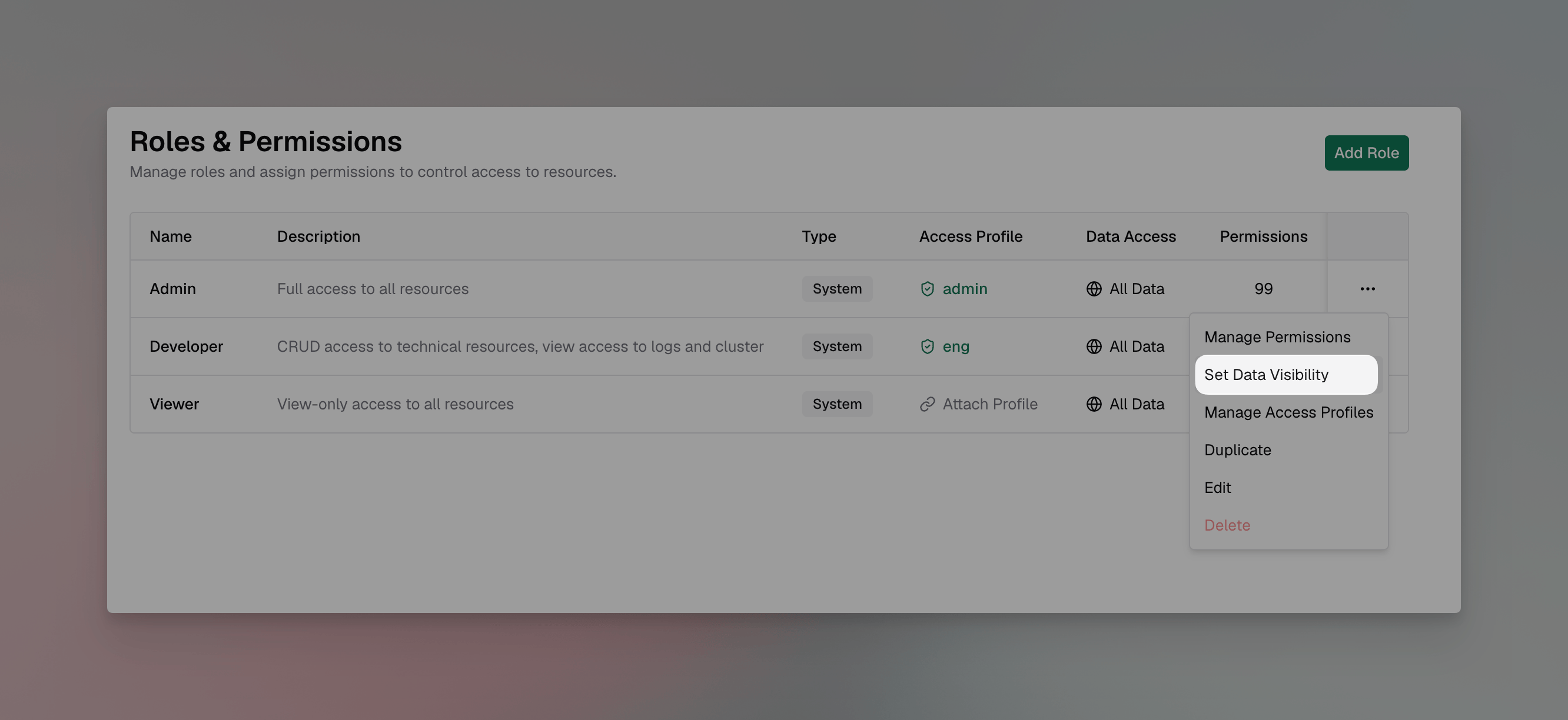 3. Under **Default for all entities**, choose the scope.
4. Under **Per-entity overrides**, optionally set a different scope for specific kinds of data.
5. Save.
To make customer data meaningful, link teams and business units to their customers. Open a team or business unit and use its **Customers** tab. See [Teams, Business Units & Customers](/enterprise/teams-business-units-customers).
### config.json and Helm
Set the scope with `dac` and the overrides with `entity_dac` on each role:
```json theme={null}
{
"governance": {
"roles": [
{
"name": "Account Manager",
"dac": "customer-data",
"entity_dac": { "PromptRepository": "all-data" }
}
]
}
}
```
Values are `own-data`, `team-data`, `business-unit-data`, `customer-data`, and `all-data`. `entity_dac` is keyed by resource name: `Logs`, `MCPLogs`, `AuditLogs`, `VirtualKeys`, `Users`, `Teams`, `Customers`, `BusinessUnits`, `RBAC`, `APIKeys`, `AccessProfiles`, `PromptRepository`, `RoutingRules`, `GuardrailsConfig`, `MCPGateway`, `AgentGateway`, `AgentLogs`, `VirtualMCPs`, and `Projects`. A role with an invalid value is skipped with a warning. In Helm, use `bifrost.governance.roles[].dac` and `.entity_dac`.
***
## Examples
### Team leads see only their team
Create a **Team Lead** role with Logs, Virtual Keys, and Users **View** permissions and **Team data** scope. Each lead sees their team's members, keys, and requests, and nothing from other teams.
### Account managers see their customer
Create an **Account Manager** role with **Customer data** scope. Link each customer's teams and business units to it. Account managers on any of Acme's teams see everything under Acme: every team, every business unit, every member, and all of Acme's traffic.
### A regional finance view
Create a **Regional Finance** role with **Business unit data** scope and Logs **View**. Members of the EMEA business unit see EMEA's spend and requests in the dashboards, without seeing other regions.
### A shared prompt library
Give a role **Team data** by default and an override of **All data** for prompts. Everyone shares one prompt library while keys and logs stay team-only.
***
## Next steps
* **[RBAC](/enterprise/rbac)** - The permissions that DAC scopes.
* **[Teams, Business Units & Customers](/enterprise/teams-business-units-customers)** - The memberships DAC is based on.
* **[How Identity Sync Works](/enterprise/how-identity-sync-works)** - Keep roles and memberships in sync with your identity provider.
* **[Audit Logs](/enterprise/audit-logs)** - Audit entries are scoped the same way.
This documentation is built and hosted on [Mintlify](https://mintlify.com), a developer documentation platform.
3. Under **Default for all entities**, choose the scope.
4. Under **Per-entity overrides**, optionally set a different scope for specific kinds of data.
5. Save.
To make customer data meaningful, link teams and business units to their customers. Open a team or business unit and use its **Customers** tab. See [Teams, Business Units & Customers](/enterprise/teams-business-units-customers).
### config.json and Helm
Set the scope with `dac` and the overrides with `entity_dac` on each role:
```json theme={null}
{
"governance": {
"roles": [
{
"name": "Account Manager",
"dac": "customer-data",
"entity_dac": { "PromptRepository": "all-data" }
}
]
}
}
```
Values are `own-data`, `team-data`, `business-unit-data`, `customer-data`, and `all-data`. `entity_dac` is keyed by resource name: `Logs`, `MCPLogs`, `AuditLogs`, `VirtualKeys`, `Users`, `Teams`, `Customers`, `BusinessUnits`, `RBAC`, `APIKeys`, `AccessProfiles`, `PromptRepository`, `RoutingRules`, `GuardrailsConfig`, `MCPGateway`, `AgentGateway`, `AgentLogs`, `VirtualMCPs`, and `Projects`. A role with an invalid value is skipped with a warning. In Helm, use `bifrost.governance.roles[].dac` and `.entity_dac`.
***
## Examples
### Team leads see only their team
Create a **Team Lead** role with Logs, Virtual Keys, and Users **View** permissions and **Team data** scope. Each lead sees their team's members, keys, and requests, and nothing from other teams.
### Account managers see their customer
Create an **Account Manager** role with **Customer data** scope. Link each customer's teams and business units to it. Account managers on any of Acme's teams see everything under Acme: every team, every business unit, every member, and all of Acme's traffic.
### A regional finance view
Create a **Regional Finance** role with **Business unit data** scope and Logs **View**. Members of the EMEA business unit see EMEA's spend and requests in the dashboards, without seeing other regions.
### A shared prompt library
Give a role **Team data** by default and an override of **All data** for prompts. Everyone shares one prompt library while keys and logs stay team-only.
***
## Next steps
* **[RBAC](/enterprise/rbac)** - The permissions that DAC scopes.
* **[Teams, Business Units & Customers](/enterprise/teams-business-units-customers)** - The memberships DAC is based on.
* **[How Identity Sync Works](/enterprise/how-identity-sync-works)** - Keep roles and memberships in sync with your identity provider.
* **[Audit Logs](/enterprise/audit-logs)** - Audit entries are scoped the same way.
This documentation is built and hosted on [Mintlify](https://mintlify.com), a developer documentation platform.