> ## Documentation Index
> Fetch the complete documentation index at: https://bifrost-dev.mintlify.site/llms.txt
> Use this file to discover all available pages before exploring further.
# Claude Desktop
> Route Claude Desktop App traffic through Bifrost for multi-provider routing, virtual keys, and observability.
The [Claude Desktop App](https://claude.ai/download) brings Claude to your desktop with a chat interface and a built-in Code tab powered by [Claude Code](https://claude.com/product/claude-code). By routing the Code tab through Bifrost, you get multi-provider routing, virtual keys, budget controls, and full observability.
If your Allowed Headers are already set to `*`, you can skip this note. If not and you face issues integrating Bifrost with Claude Desktop, try switching to `*` or adding the specific headers required by your client. By default, Bifrost whitelists: `Content-Type`, `Authorization`, `X-Requested-With`, `X-Stainless-Timeout`, and `X-Api-Key`.
## How It Works
The Claude Desktop App has two tabs with different routing behavior:
| Tab | Traffic | Bifrost Integration |
| ------------ | ------------------------------------------------------------ | ------------------------------------------------------- |
| **Code tab** | Uses the Anthropic Messages API (Claude Code under the hood) | Route inference through Bifrost's `/anthropic` endpoint |
| **Chat tab** | Connects directly to claude.ai | Connect to Bifrost's `/mcp` endpoint for MCP tools |
This guide covers configuring the **Code tab** for inference routing and the **Chat tab** for MCP tool access.
## Setup
### 1. Configure settings.json
Open `~/.claude/settings.json` and add the Bifrost endpoint and API key under the `env` key:
```json theme={null}
{
"env": {
"ANTHROPIC_API_KEY": "your-bifrost-virtual-key",
"ANTHROPIC_BASE_URL": "http://localhost:8080/anthropic"
}
}
```
For production deployments:
```json theme={null}
{
"env": {
"ANTHROPIC_API_KEY": "your-bifrost-virtual-key",
"ANTHROPIC_BASE_URL": "https://bifrost.example.com/anthropic"
}
}
```
You can open this file by running `/config` inside Claude Code, or by editing `~/.claude/settings.json` directly. These settings are shared between the Desktop app and the CLI.
### 2. Start a New Session
Close any active session in the Code tab and start a new one for the settings to take effect.
## Native App Routing via the Gateway Provider (Developer Mode)
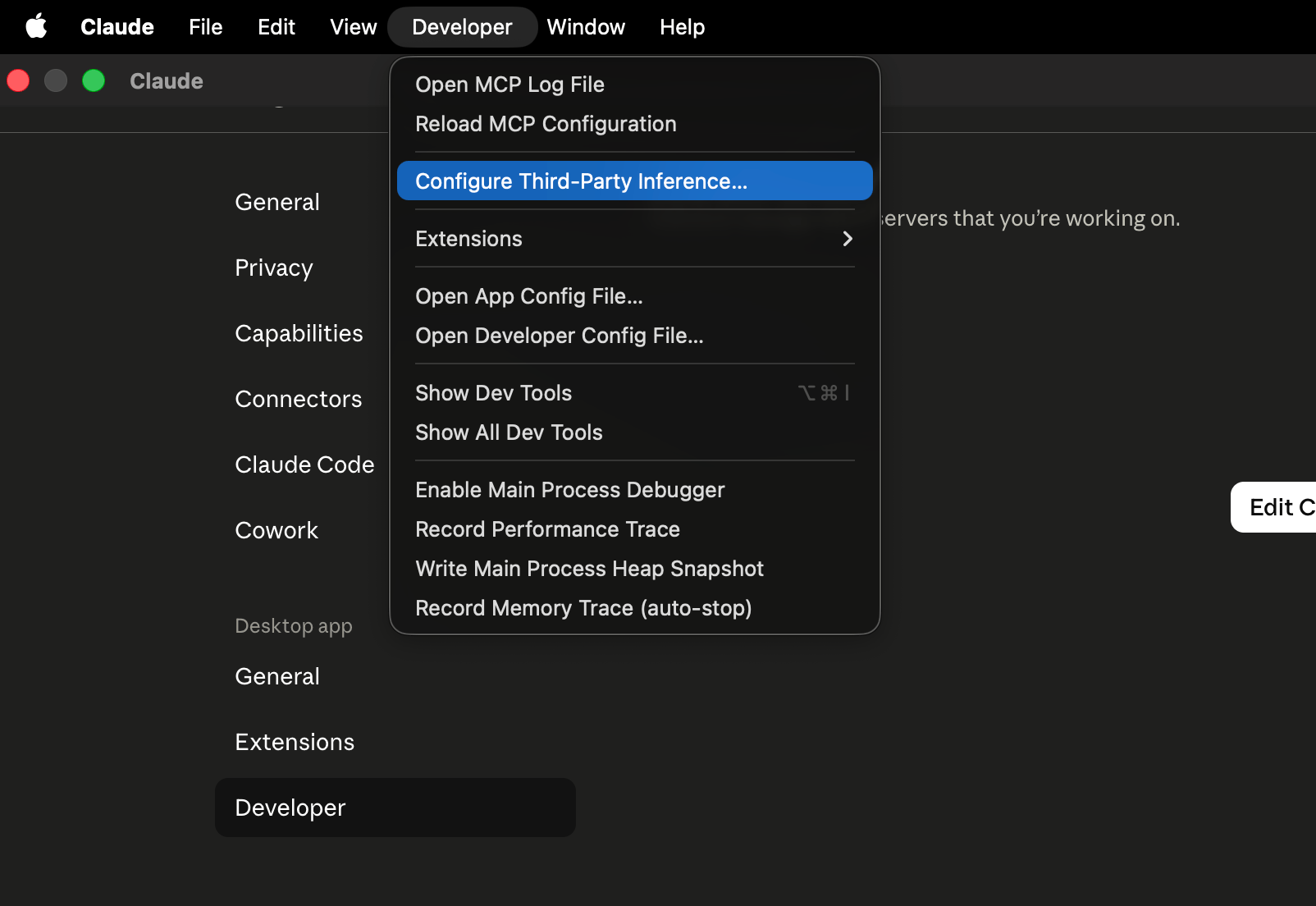
The steps above route the **Code tab** through Bifrost. The Claude Desktop app can also route its **native inference** through a custom gateway directly, without touching `~/.claude/settings.json`. This is configured in the app's **Developer** settings by setting the **inference provider** to **Gateway**.
The Developer settings and the Gateway inference provider are surfaced by Claude Desktop and may require Developer mode (or managed/enterprise enablement) to appear. If you don't see them, this flow isn't available in your build.
### 1. Enable Developer Mode and Select Gateway
1. Open **Settings** and enable **Developer mode**.
2. Go to the **Developer** tab and find the **Inference provider** setting.
3. Set the inference provider to **Gateway**.
 ### 2a. Authenticate with a Virtual Key (Direct)
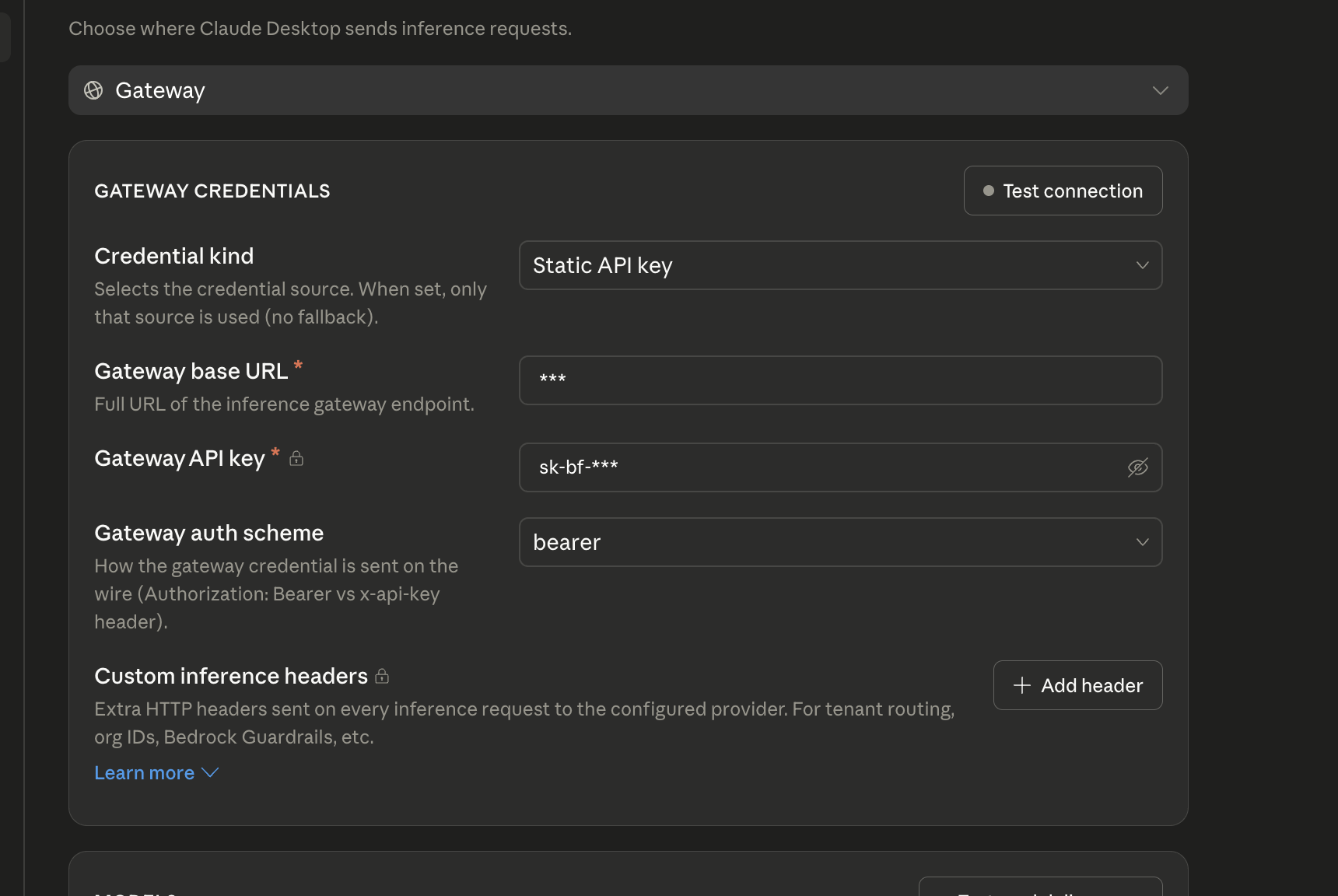
Fill in the gateway fields to point Claude Desktop at Bifrost:
| Field | Value |
| -------------------- | --------------------------------------- |
| **Gateway base URL** | `https:///anthropic` |
| **Auth scheme** | `x-api-key` or `bearer` (both work) |
| **Gateway API key** | Your Bifrost virtual key |
A few things to get right:
* **Use the `/anthropic` path.** Claude Desktop appends `/v1/messages` to the base URL, and Bifrost serves the Anthropic Messages API under `/anthropic` (so requests land on `/anthropic/v1/messages`).
* **The virtual key is the credential.** With either auth scheme, set the key to your Bifrost virtual key — Bifrost recognizes a virtual key sent as `Authorization: Bearer ` or `X-Api-Key: `.
### 2a. Authenticate with a Virtual Key (Direct)
Fill in the gateway fields to point Claude Desktop at Bifrost:
| Field | Value |
| -------------------- | --------------------------------------- |
| **Gateway base URL** | `https:///anthropic` |
| **Auth scheme** | `x-api-key` or `bearer` (both work) |
| **Gateway API key** | Your Bifrost virtual key |
A few things to get right:
* **Use the `/anthropic` path.** Claude Desktop appends `/v1/messages` to the base URL, and Bifrost serves the Anthropic Messages API under `/anthropic` (so requests land on `/anthropic/v1/messages`).
* **The virtual key is the credential.** With either auth scheme, set the key to your Bifrost virtual key — Bifrost recognizes a virtual key sent as `Authorization: Bearer ` or `X-Api-Key: `.
 After saving, **restart Claude Desktop** so it picks up the gateway configuration.
### 2b. Authenticate with SSO
Instead of a static virtual key, you can set the gateway auth scheme to **Interactive sign-in** and have Claude Desktop authenticate against your identity provider. The **Gateway base URL** is the same as in 2a (`https:///anthropic`, including the `/anthropic` suffix) — only the auth scheme changes.
After saving, **restart Claude Desktop** so it picks up the gateway configuration.
### 2b. Authenticate with SSO
Instead of a static virtual key, you can set the gateway auth scheme to **Interactive sign-in** and have Claude Desktop authenticate against your identity provider. The **Gateway base URL** is the same as in 2a (`https:///anthropic`, including the `/anthropic` suffix) — only the auth scheme changes.
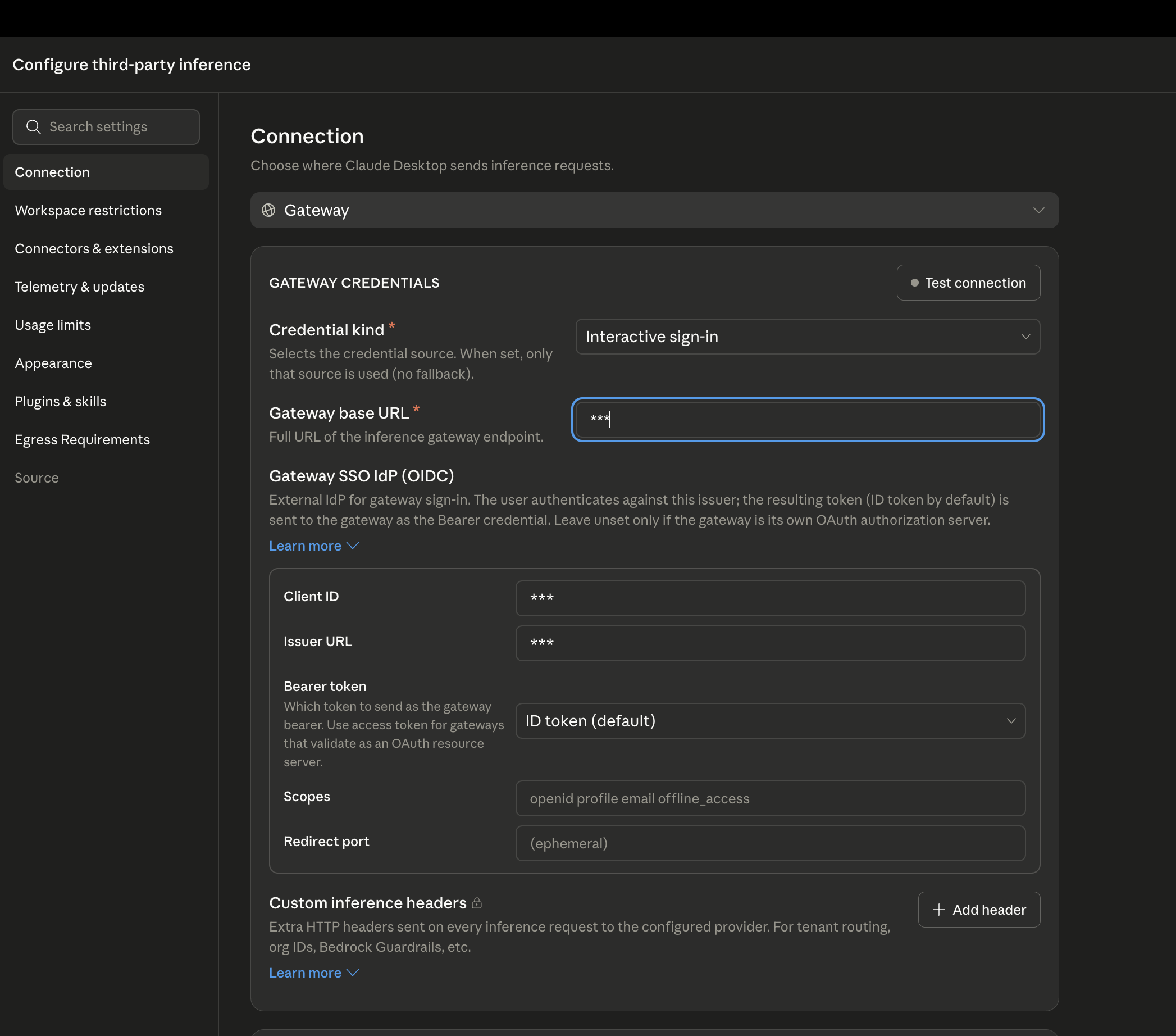 This will allow users to log in directly onto their Bifrost through the configured IdP.
### Why You Only See Anthropic Models
When you list models through the gateway, you'll notice that only Claude-family models show up in Claude Desktop — even though Bifrost is configured with models from many providers.
This is expected. **Claude Desktop deliberately displays only its own Claude-family models**, and quietly hides everything else returned by the gateway. It is a client-side decision made by the Claude Desktop app — it is **not** a limitation or misconfiguration on the Bifrost side. Bifrost returns every model you've allowed (you can confirm this by calling its list-models endpoint directly); the app simply chooses not to show the non-Claude ones in its picker.
If you need to use non-Claude models from Bifrost in Claude tooling, route through the **Code tab** instead (configured in the [Setup](#setup) section above), where model tiers can be pinned or aliased to any provider.
## MCP Integration (Chat Tab)
The Chat tab supports MCP servers configured in `claude_desktop_config.json`. Connect to Bifrost's MCP endpoint to give the Chat tab access to all your aggregated MCP tools:
**Config file locations:**
* **macOS**: `~/Library/Application Support/Claude/claude_desktop_config.json`
* **Windows**: `%APPDATA%\Claude\claude_desktop_config.json`
```json theme={null}
{
"mcpServers": {
"bifrost": {
"url": "http://localhost:8080/mcp",
"headers": {
"Authorization": "Bearer your-bifrost-virtual-key"
}
}
}
}
```
MCP servers in `claude_desktop_config.json` are for the **Chat tab only**. For MCP in the Code tab, configure servers in `~/.claude.json` or your project's `.mcp.json` file. See [MCP Gateway](/mcp/gateway) for full setup details.
### Behind a VPN or Private Network (MCPB)
The `mcpServers` config above only works if Claude Desktop's connector infrastructure can reach your Bifrost host directly. If Bifrost's `/mcp` endpoint is only reachable from inside a VPN or private network, a direct connection won't work - Claude Desktop's remote connectors are proxied through Anthropic's server-side infrastructure, which has no route into your private network.
The fix is to package a local proxy as an [MCPB (MCP Bundle)](https://claude.com/docs/connectors/building/mcpb) extension. Unlike remote connectors, an MCPB runs locally on your machine via stdio, so it has the same network access as any other process on your laptop - including your VPN. It bridges Claude Desktop to Bifrost's MCP endpoint using [`mcp-remote`](https://www.npmjs.com/package/mcp-remote) as a stdio-to-HTTP proxy, handling the OAuth login and token refresh against Bifrost for you.
**1. Install the MCPB CLI:**
```bash theme={null}
npm install -g @anthropic-ai/mcpb
```
**2. Create a project** which includes a `manifest.json` describing the extension and a `package.json` pulling in `mcp-remote`:
```json manifest.json theme={null}
{
"manifest_version": "0.3",
"name": "bifrost-mcp",
"display_name": "Bifrost MCP",
"version": "1.0.0",
"description": "Connects Claude Desktop to a VPN-only Bifrost MCP server over a local proxy.",
"author": { "name": "Your Name" },
"server": {
"type": "node",
"entry_point": "node_modules/mcp-remote/dist/proxy.js",
"mcp_config": {
"command": "node",
"args": [
"${__dirname}/node_modules/mcp-remote/dist/proxy.js",
"${user_config.server_url}",
"3335"
]
}
},
"compatibility": {
"platforms": ["darwin", "win32"],
"runtimes": { "node": ">=18.0.0" }
},
"user_config": {
"server_url": {
"type": "string",
"title": "Bifrost MCP URL",
"description": "The Streamable HTTP MCP endpoint of your Bifrost instance. Must use HTTPS.",
"default": "/mcp",
"required": true
}
}
}
```
```json package.json theme={null}
{
"name": "bifrost-mcpb",
"version": "1.0.0",
"private": true,
"dependencies": {
"mcp-remote": "0.1.38"
}
}
```
`mcp-remote` refuses to connect to any non-HTTPS, non-local URL unless you explicitly opt out.
If your Bifrost deployment is only reachable over plain `http://` (e.g. a trusted, network-isolated VPN segment) and you still need to point at it, add `--allow-http` to `mcp_config.args` in `manifest.json`:
```json theme={null}
"args": [
"${__dirname}/node_modules/mcp-remote/dist/proxy.js",
"${user_config.server_url}",
"3335",
"--allow-http"
]
```
**3. Install dependencies and pack:**
```bash theme={null}
npm install --omit=dev
npx @anthropic-ai/mcpb pack .
```
This produces a `bifrost-mcp.mcpb` file - a single portable archive.
**4. Install it in Claude Desktop** by double-clicking the `.mcpb` file (or via Settings → Extensions → Advanced settings → Install Extension…). Confirm the `server_url`, then grant permissions. On first use it opens your browser to complete OAuth login against Bifrost; tokens are cached locally under `~/.mcp-auth`.
To skip the OAuth browser flow entirely and authenticate with a Bifrost virtual key instead, pass it as a static header using `mcp-remote`'s `--header` flag. Add a `virtual_key` field to `user_config` and reference it from `mcp_config.args`:
```json theme={null}
"user_config": {
"server_url": { "...": "..." },
"virtual_key": {
"type": "string",
"title": "Bifrost Virtual Key",
"description": "Bifrost virtual key sent as a Bearer token.",
"sensitive": true,
"required": true
}
}
```
```json theme={null}
"args": [
"${__dirname}/node_modules/mcp-remote/dist/proxy.js",
"${user_config.server_url}",
"3335",
"--header",
"Authorization:Bearer ${user_config.virtual_key}"
]
```
Marking the field `sensitive: true` masks it in the Claude Desktop extension settings UI. With a valid `Authorization` header present, `mcp-remote` connects directly and never opens a browser for OAuth.
## Enterprise Deployment
For organization-wide Bifrost routing, deploy a `managed-settings.json` file via MDM (Jamf, Kandji, Intune):
* **macOS**: `/Library/Application Support/ClaudeCode/managed-settings.json`
* **Windows**: `C:\Program Files\ClaudeCode\managed-settings.json`
```json theme={null}
{
"env": {
"ANTHROPIC_BASE_URL": "https://bifrost.example.com/anthropic",
"ANTHROPIC_API_KEY": "org-bifrost-virtual-key"
}
}
```
Managed settings cannot be overridden by individual users, ensuring all Code tab traffic routes through Bifrost.
## Observability
All Claude Desktop Code tab requests through Bifrost are logged. Monitor them at `http://localhost:8080/logs` - filter by provider, model, or search through conversation content to track usage patterns across your organization.
## Next Steps
* [Provider Configuration](/quickstart/gateway/provider-configuration) - Configure AI providers in Bifrost
* [Virtual Keys](/features/governance/virtual-keys) - Set up usage limits and access control
* [Built-in Observability](/features/observability/default) - Monitor all AI traffic
* [MCP Gateway](/mcp/gateway) - Full MCP server setup and tool filtering
This will allow users to log in directly onto their Bifrost through the configured IdP.
### Why You Only See Anthropic Models
When you list models through the gateway, you'll notice that only Claude-family models show up in Claude Desktop — even though Bifrost is configured with models from many providers.
This is expected. **Claude Desktop deliberately displays only its own Claude-family models**, and quietly hides everything else returned by the gateway. It is a client-side decision made by the Claude Desktop app — it is **not** a limitation or misconfiguration on the Bifrost side. Bifrost returns every model you've allowed (you can confirm this by calling its list-models endpoint directly); the app simply chooses not to show the non-Claude ones in its picker.
If you need to use non-Claude models from Bifrost in Claude tooling, route through the **Code tab** instead (configured in the [Setup](#setup) section above), where model tiers can be pinned or aliased to any provider.
## MCP Integration (Chat Tab)
The Chat tab supports MCP servers configured in `claude_desktop_config.json`. Connect to Bifrost's MCP endpoint to give the Chat tab access to all your aggregated MCP tools:
**Config file locations:**
* **macOS**: `~/Library/Application Support/Claude/claude_desktop_config.json`
* **Windows**: `%APPDATA%\Claude\claude_desktop_config.json`
```json theme={null}
{
"mcpServers": {
"bifrost": {
"url": "http://localhost:8080/mcp",
"headers": {
"Authorization": "Bearer your-bifrost-virtual-key"
}
}
}
}
```
MCP servers in `claude_desktop_config.json` are for the **Chat tab only**. For MCP in the Code tab, configure servers in `~/.claude.json` or your project's `.mcp.json` file. See [MCP Gateway](/mcp/gateway) for full setup details.
### Behind a VPN or Private Network (MCPB)
The `mcpServers` config above only works if Claude Desktop's connector infrastructure can reach your Bifrost host directly. If Bifrost's `/mcp` endpoint is only reachable from inside a VPN or private network, a direct connection won't work - Claude Desktop's remote connectors are proxied through Anthropic's server-side infrastructure, which has no route into your private network.
The fix is to package a local proxy as an [MCPB (MCP Bundle)](https://claude.com/docs/connectors/building/mcpb) extension. Unlike remote connectors, an MCPB runs locally on your machine via stdio, so it has the same network access as any other process on your laptop - including your VPN. It bridges Claude Desktop to Bifrost's MCP endpoint using [`mcp-remote`](https://www.npmjs.com/package/mcp-remote) as a stdio-to-HTTP proxy, handling the OAuth login and token refresh against Bifrost for you.
**1. Install the MCPB CLI:**
```bash theme={null}
npm install -g @anthropic-ai/mcpb
```
**2. Create a project** which includes a `manifest.json` describing the extension and a `package.json` pulling in `mcp-remote`:
```json manifest.json theme={null}
{
"manifest_version": "0.3",
"name": "bifrost-mcp",
"display_name": "Bifrost MCP",
"version": "1.0.0",
"description": "Connects Claude Desktop to a VPN-only Bifrost MCP server over a local proxy.",
"author": { "name": "Your Name" },
"server": {
"type": "node",
"entry_point": "node_modules/mcp-remote/dist/proxy.js",
"mcp_config": {
"command": "node",
"args": [
"${__dirname}/node_modules/mcp-remote/dist/proxy.js",
"${user_config.server_url}",
"3335"
]
}
},
"compatibility": {
"platforms": ["darwin", "win32"],
"runtimes": { "node": ">=18.0.0" }
},
"user_config": {
"server_url": {
"type": "string",
"title": "Bifrost MCP URL",
"description": "The Streamable HTTP MCP endpoint of your Bifrost instance. Must use HTTPS.",
"default": "/mcp",
"required": true
}
}
}
```
```json package.json theme={null}
{
"name": "bifrost-mcpb",
"version": "1.0.0",
"private": true,
"dependencies": {
"mcp-remote": "0.1.38"
}
}
```
`mcp-remote` refuses to connect to any non-HTTPS, non-local URL unless you explicitly opt out.
If your Bifrost deployment is only reachable over plain `http://` (e.g. a trusted, network-isolated VPN segment) and you still need to point at it, add `--allow-http` to `mcp_config.args` in `manifest.json`:
```json theme={null}
"args": [
"${__dirname}/node_modules/mcp-remote/dist/proxy.js",
"${user_config.server_url}",
"3335",
"--allow-http"
]
```
**3. Install dependencies and pack:**
```bash theme={null}
npm install --omit=dev
npx @anthropic-ai/mcpb pack .
```
This produces a `bifrost-mcp.mcpb` file - a single portable archive.
**4. Install it in Claude Desktop** by double-clicking the `.mcpb` file (or via Settings → Extensions → Advanced settings → Install Extension…). Confirm the `server_url`, then grant permissions. On first use it opens your browser to complete OAuth login against Bifrost; tokens are cached locally under `~/.mcp-auth`.
To skip the OAuth browser flow entirely and authenticate with a Bifrost virtual key instead, pass it as a static header using `mcp-remote`'s `--header` flag. Add a `virtual_key` field to `user_config` and reference it from `mcp_config.args`:
```json theme={null}
"user_config": {
"server_url": { "...": "..." },
"virtual_key": {
"type": "string",
"title": "Bifrost Virtual Key",
"description": "Bifrost virtual key sent as a Bearer token.",
"sensitive": true,
"required": true
}
}
```
```json theme={null}
"args": [
"${__dirname}/node_modules/mcp-remote/dist/proxy.js",
"${user_config.server_url}",
"3335",
"--header",
"Authorization:Bearer ${user_config.virtual_key}"
]
```
Marking the field `sensitive: true` masks it in the Claude Desktop extension settings UI. With a valid `Authorization` header present, `mcp-remote` connects directly and never opens a browser for OAuth.
## Enterprise Deployment
For organization-wide Bifrost routing, deploy a `managed-settings.json` file via MDM (Jamf, Kandji, Intune):
* **macOS**: `/Library/Application Support/ClaudeCode/managed-settings.json`
* **Windows**: `C:\Program Files\ClaudeCode\managed-settings.json`
```json theme={null}
{
"env": {
"ANTHROPIC_BASE_URL": "https://bifrost.example.com/anthropic",
"ANTHROPIC_API_KEY": "org-bifrost-virtual-key"
}
}
```
Managed settings cannot be overridden by individual users, ensuring all Code tab traffic routes through Bifrost.
## Observability
All Claude Desktop Code tab requests through Bifrost are logged. Monitor them at `http://localhost:8080/logs` - filter by provider, model, or search through conversation content to track usage patterns across your organization.
## Next Steps
* [Provider Configuration](/quickstart/gateway/provider-configuration) - Configure AI providers in Bifrost
* [Virtual Keys](/features/governance/virtual-keys) - Set up usage limits and access control
* [Built-in Observability](/features/observability/default) - Monitor all AI traffic
* [MCP Gateway](/mcp/gateway) - Full MCP server setup and tool filtering